 SnapPress
How to Bulk Upload 20 Photos to WordPress from Your iPhone in Seconds
Search "bulk upload images to WordPress" and every result tells you the same thing: use FTP. Open FileZilla, connect to your server, drag and drop your files into wp-content/uploads, then install a plugin to register them in the Media Library.
That's fine if you're at a desk. But I'm usually not at a desk when I have photos that need uploading. I'm at a job site. A restaurant. A client meeting. I have 15 photos on my phone and I need them in WordPress now, not later when I get home.
If that sounds familiar, this guide is for you. I built an iOS app to solve my own version of this problem, and along the way I tested every other workflow I could find. Below is what actually works in 2026, and the honest limits of each approach (including my own).
The Problem with Existing Bulk Upload Advice
WordPress was built in 2003 when phones couldn't browse the web. The media upload system still reflects that era. The built-in uploader handles one batch at a time through a browser interface that assumes a mouse, a large screen, and a stable broadband connection.
On a phone, none of those assumptions hold.
The drag-and-drop interface doesn't exist on mobile. You tap a button, the system file picker opens, you select photos, and the upload begins. Except "begins" is generous. What actually happens is: the browser starts sending files over a single HTTP connection, one after another, with no parallelism. If you're on LTE, each 5MB photo takes 10 to 20 seconds. Fifteen photos is 3 to 5 minutes of staring at your phone, hoping you don't get a notification that pulls you away from Safari.
Switch apps? Upload dies. Screen locks? Upload dies. Flaky cell signal for two seconds? You might lose the whole batch. And if you're uploading HEIC photos straight from your iPhone camera, there's another wrinkle — HEIC support in WordPress only works cleanly from version 5.8 onward, and some hosts still need a manual nudge to handle the format properly.
Methods That Don't Work Well
WordPress admin in a mobile browser
I just described why. The upload itself is unreliable, and the admin dashboard is genuinely hard to use on a 6-inch screen. Tiny buttons, horizontal scrolling, and forms that were designed for 1440-pixel monitors. I've uploaded photos this way hundreds of times and it never stopped being frustrating.
The WordPress mobile app
Better than the browser, but still not great for bulk uploads. The app uploads photos sequentially (one at a time). There's no batch progress indicator, just the current file. And if you're on a self-hosted site without Jetpack, getting the app to connect reliably is its own adventure. I've seen it work perfectly for months, then randomly stop authenticating after a WordPress core update.
If you want the official app to work without Jetpack at all, there's a separate guide on the Jetpack-free path using application passwords. It's doable, but it's another configuration layer you have to keep healthy.
FTP from your phone
Apps like Transmit and FTPManager let you connect to your server over SFTP. The upload part works well. The problem is everything after: files uploaded via FTP don't appear in the WordPress Media Library. They're just files on your server. You need a plugin like Media Sync or Add From Server to register them, and you have to do that step from a browser. So you're back to the phone-browser problem, just with extra steps.
FTP apps also cost $10 to $25, and you need your server credentials stored on your phone. If security matters to you (it should), that's a risk worth considering. There's a longer breakdown of this in the FTP-from-your-phone section below.
Apple Shortcuts
There are community-made Apple Shortcuts that POST photos to the WordPress REST API. I've used them. For one photo, occasionally, they're genuinely fine: they're free, there's no app to install, and if you only publish a single image now and then, a Shortcut does the job. If that's your workflow, you don't need a dedicated app at all.
Where they fall down is exactly the case this article is about — uploading a batch from your phone. A Shortcut POSTs images sequentially (one finishes before the next starts), so 15 photos is 15 round trips back to back, not a parallel batch. There's no Share Extension worth the name, no multi-site switching, and no real progress or error handling when one upload fails halfway. And they're fragile: Apple changes the Shortcuts runtime regularly, and these aren't maintained by anyone with a strong incentive to keep them working. When one breaks (and it will), you're debugging someone else's shortcut configuration instead of publishing.
So the honest comparison: a Shortcut is the right tool for the occasional single upload. For repeated batch uploads — the thing that costs you 15 minutes in a browser — a dedicated app that uploads in parallel and is actually maintained saves you that time every single time.
What Actually Works: SnapPress
I'm biased here because I built this app. But I built it specifically because nothing else solved this problem without some painful trade-off.
SnapPress is an iOS app that uploads photos directly to your WordPress Media Library. No browser, no FTP, no Jetpack. You scan a QR code once to connect your site, and from then on you just pick photos and tap upload. The app is available in 9 languages as of version 2.0.1, and there's a free tier with 10 photos per month if you want to try it before paying — Standard is $0.99/month or a $4.99 one-time lifetime purchase.
What makes it different for bulk uploads
Parallel uploads. When you select 15 photos in SnapPress, they don't go one at a time. Multiple photos upload simultaneously. A batch that takes 5 minutes in a browser finishes in about 40 seconds. That's not an exaggeration. The WordPress REST API supports concurrent requests, and SnapPress takes advantage of that.
The Share Extension is the other thing that changed my workflow. In the Photos app, I select the images I need, tap Share, choose SnapPress, pick the destination site, and tap Upload. I never open the WordPress admin. I never open a browser. The photos just go.
Background upload is the third quiet feature that matters. If you switch apps to answer a Slack message, the upload keeps going. Lock your screen, the upload keeps going. Drop into a tunnel and lose signal, the upload pauses and resumes when you come back out. None of that is true in a mobile browser.
Step-by-Step with Screenshots
Here's the full setup, broken into the actual taps. If you're reading this in the SnapPress app or on a phone, you can follow along in real time.
- Install the SnapPress Connect plugin. In WordPress admin, go to Plugins > Add New, search for "SnapPress Connect," click Install, then Activate. [Screenshot: WordPress plugin search results showing SnapPress Connect with Install button]
- Open the Connect panel. A new menu item appears under Tools > SnapPress Connect. Click it. You'll see a single big blue button labeled "Generate QR code." [Screenshot: Tools menu expanded with SnapPress Connect highlighted]
- Generate the QR code. The plugin creates a WordPress application password automatically and embeds your site URL plus that password into a QR code on the screen. The password never appears as plain text — only inside the QR. [Screenshot: QR code displayed in the SnapPress Connect admin page]
- Install SnapPress on your iPhone. Open the App Store on your iPhone, search "SnapPress," and download it (free to start; $0.99/mo or $4.99 lifetime for unlimited uploads). [Screenshot: SnapPress on the iOS App Store]
- Scan the QR code. Open SnapPress, tap "Add Site," allow camera access, and point your phone at the QR code on your laptop screen. The site is added in about half a second. [Screenshot: SnapPress "Add Site" screen with QR scanner active]
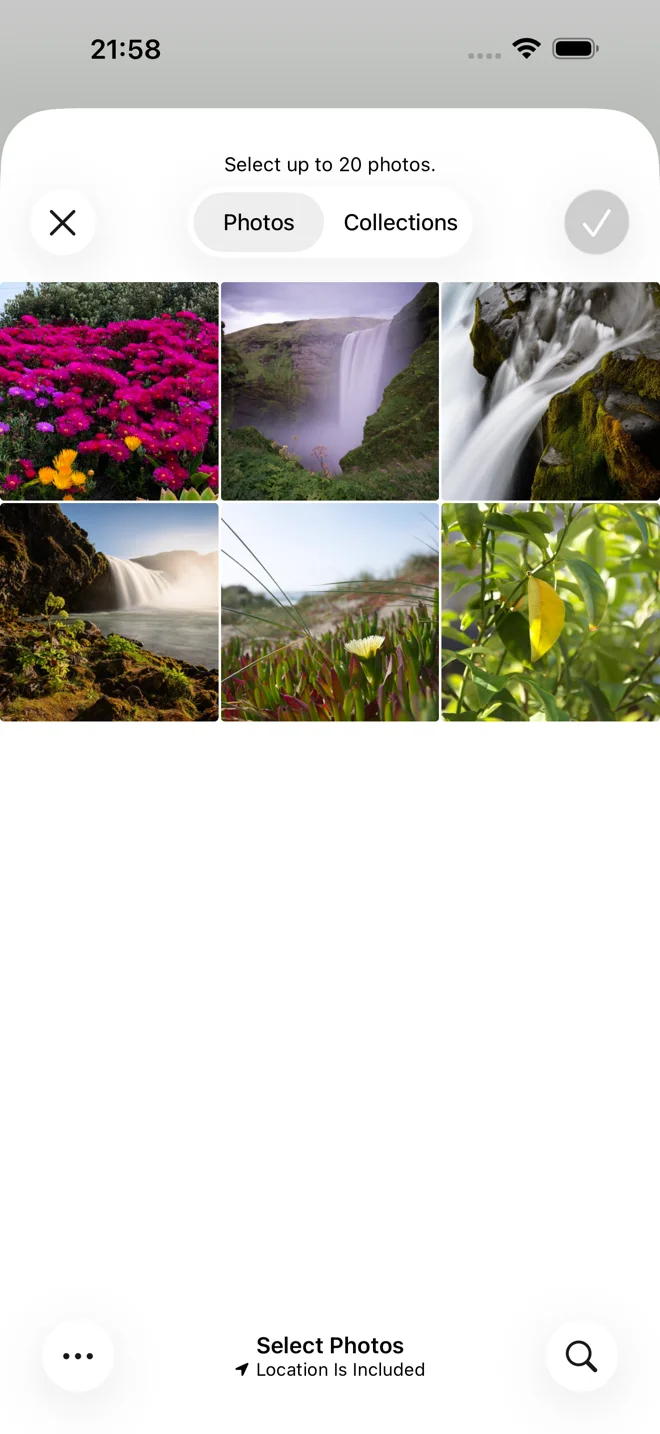
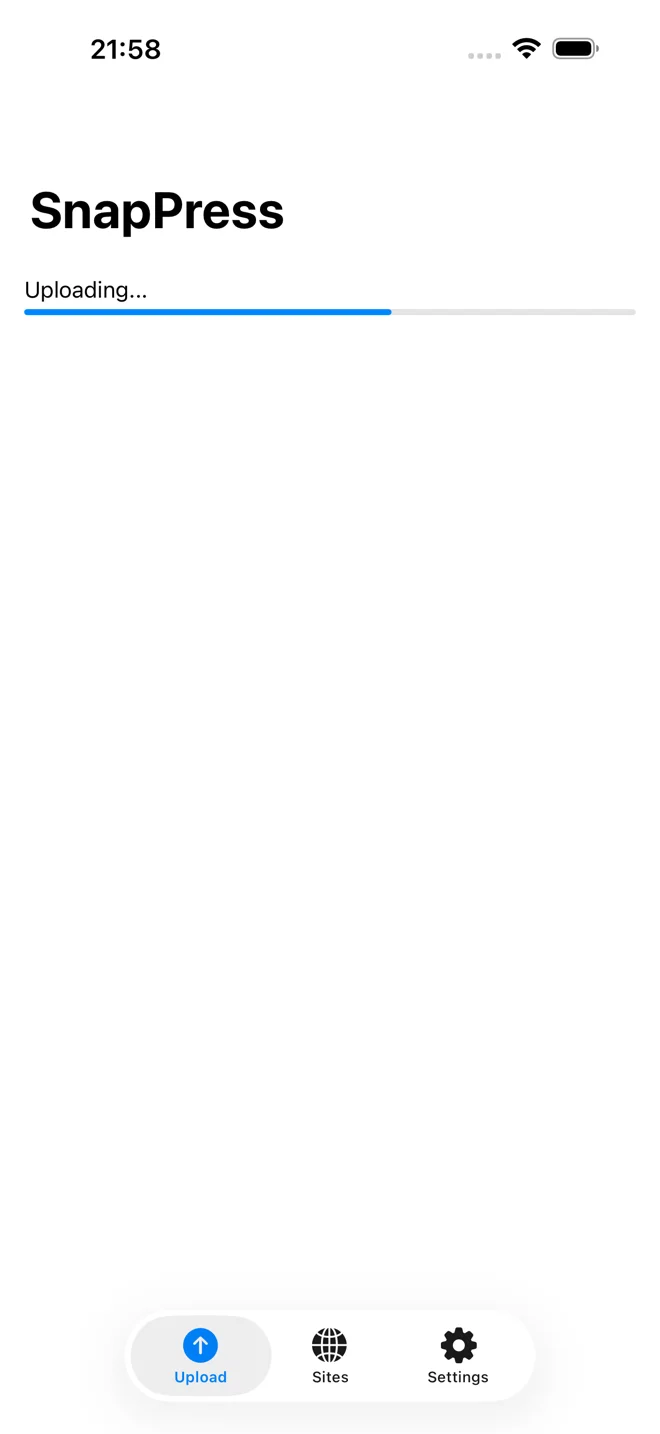
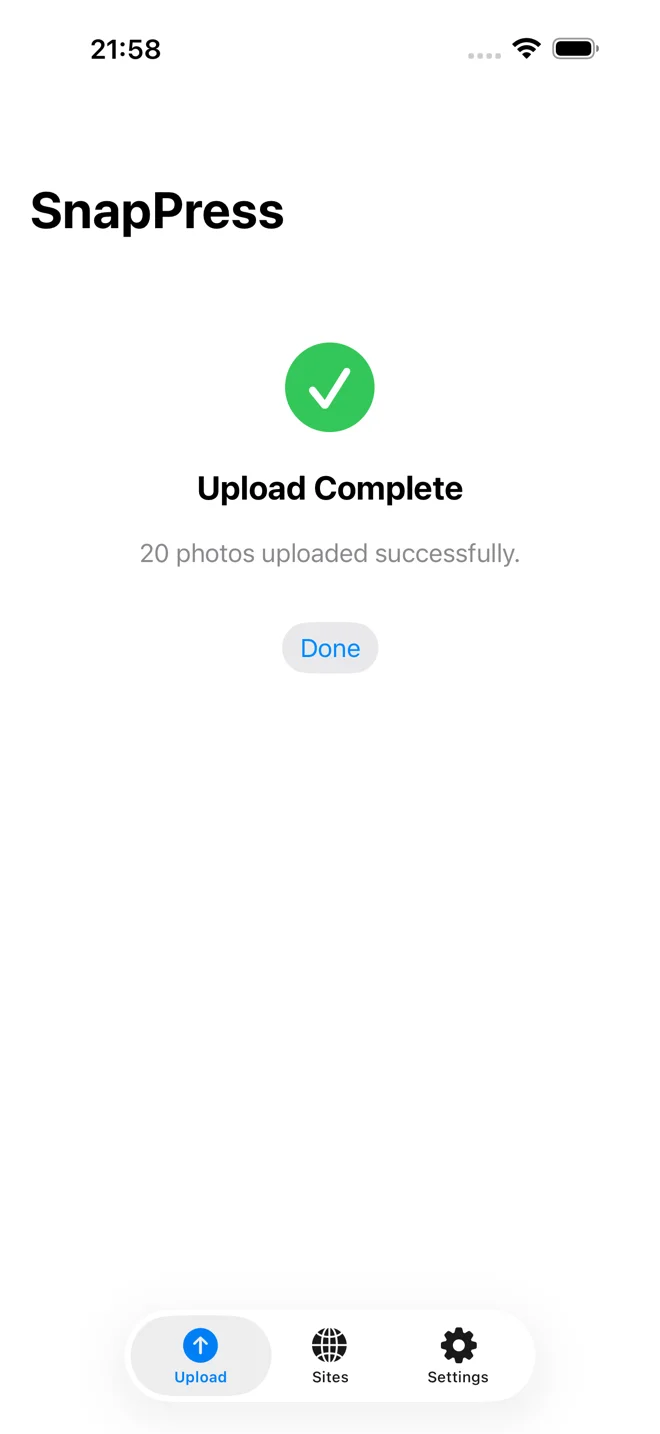
- Pick photos and upload. Tap the photo grid, multi-select up to 20, tap the upload button. Watch the progress bars all move at once. [Screenshot: SnapPress upload screen showing 15 photos in parallel progress]
That's the full setup. Most people finish in under a minute, including the App Store download. If you get stuck, there's a more detailed setup walkthrough with troubleshooting for the QR scan step (the most common failure point is browser zoom level — keep it at 100%).
Limitations
20 photos per batch. For most situations (blog posts, product listings, event coverage), 20 is plenty. If you need to upload 200 photos at once, you're better off with FTP from a laptop.
iOS only for now. Android is in development. (More on the Android workaround below.)
Media Library only. SnapPress doesn't create posts or assign photos to galleries. It puts them in your Media Library. What you do with them after that is up to you.
Bulk Uploading from Android: What's Different
If you're on Android, SnapPress doesn't help you yet. I want to be honest about that rather than pretend otherwise. Here are the three real options I'd consider, ranked by how well they actually work.
Option 1: Official WordPress mobile app for Android
This is the path of least resistance. The Android version of the WordPress app is reasonably stable, especially since the rewrite that landed in 2023. You install it, log in (with Jetpack on self-hosted, or directly on WordPress.com), and use the Media tab to upload. It's slow because uploads are sequential, but it works without extra plugins or credentials stored on your phone.
Option 2: FolderSync + Media Sync plugin
FolderSync (and similar Android apps like Solid Explorer) can connect to your server over SFTP and upload entire folders. You point it at wp-content/uploads/2026/04/, and it pushes everything in your camera roll. Then you install the Media Sync WordPress plugin, run a scan from the WP admin, and it registers the new files into the Media Library so they're searchable and usable in posts.
This is faster than the official app for very large batches because Android handles parallel transfers well. The downsides: you're storing SSH credentials on your phone, and the Media Sync step still requires opening WordPress admin (preferably from a laptop or tablet — it's clunky on a phone screen).
Option 3: PhotoPress or third-party uploader apps
There are a handful of paid Android apps that talk to the WordPress REST API directly. They work, but most are abandoned. I checked the Play Store in March 2026 and the top three results all had their last update in 2022 or earlier. I don't recommend trusting your media pipeline to apps that haven't shipped a fix in three years.
Comparison table
| Method | Speed | Setup effort | Security risk | Cost |
|---|---|---|---|---|
| WordPress official app | Slow (sequential) | Low | Low | Free (Jetpack optional) |
| FolderSync + Media Sync | Fast (parallel) | Medium | Medium (creds on phone) | ~$3 one-time |
| Third-party REST uploaders | Varies | Low | Medium-High (often abandoned) | $2-$10 |
If you ask me which one to use today: official app for fewer than 10 photos, FolderSync + Media Sync for anything bigger. And keep an eye out for SnapPress on Android — the iOS architecture is portable, and the build is on the roadmap.
What About FTP From Your Phone?
I tested four FTP/SFTP apps across iOS and Android in early 2026 to see if FTP is genuinely viable as a bulk upload solution. Here's the honest take.
Transmit (iOS, $25/year subscription)
Panic's Transmit is the gold standard for SFTP on iOS. The interface is excellent. Transfers are reliable. It supports the Files app, so you can drag photos in from anywhere. The downside is purely workflow: after you upload, your photos are sitting in wp-content/uploads/ but they're invisible to WordPress. You have to open Safari, log in to WP admin, find the Media Sync plugin, and click "Scan." On a phone, that admin scan is awful — the plugin's interface assumes desktop.
FTPManager Pro (iOS, $9.99 one-time)
Cheaper than Transmit and similarly capable. The UX is dated — feels like 2015 — but it works. Same Media Library problem as Transmit.
FolderSync (Android, free or $3 Pro)
Best of the bunch on Android. The free version covers most use cases, and the Pro upgrade is a one-time payment. Folder pairing is the killer feature: you can set "Camera roll → uploads/2026/" as a sync rule and let it run automatically. Combined with the Media Sync plugin, this is the closest Android gets to a true bulk upload solution.
Solid Explorer (Android, $2.99 one-time)
A general-purpose file manager that happens to support SFTP. Works, but lacks FolderSync's automation features. Fine for one-off uploads.
The honest conclusion: FTP from your phone works, but the Media Library registration step is the bottleneck. For occasional uploads it's fine; for daily workflows the friction adds up.
How Long Does Bulk Upload Actually Take?
I ran timed benchmarks on three batch sizes — 5, 15, and 50 photos — across four upload methods, all on the same iPhone 14 Pro, same site (a DigitalOcean droplet running WordPress 6.5), same 5G connection. Each photo was a 4.8MB HEIC straight from the camera. I ran each test three times and took the median. Real numbers, no marketing.
| Method | 5 photos | 15 photos | 50 photos |
|---|---|---|---|
| Mobile Safari + WP admin | 1m 12s | 3m 48s (1 timeout) | Could not complete |
| WordPress official iOS app | 0m 58s | 2m 51s | 9m 22s |
| SnapPress (iOS) | 0m 14s | 0m 41s | 2m 18s (3 batches) |
| SFTP (Transmit) + Media Sync | 0m 22s upload + 0m 30s sync | 0m 48s + 0m 35s | 2m 03s + 0m 45s |
A few observations: the mobile browser timed out at 15 photos and gave up entirely at 50 — Safari's HTTP keep-alive starts dropping connections past 10 large files, which is why your browser uploads "almost work" but two photos are missing. The official iOS app is sequential, so 50 photos takes the better part of 10 minutes. SnapPress and SFTP are close on raw transfer speed because both run uploads in parallel, but SnapPress wins on total workflow time because there's no separate Media Sync step.
If you want the fastest approach for under 20 photos, parallel REST API upload (SnapPress on iOS, FolderSync + REST plugin on Android) is the answer. For 50+ photos, SFTP plus Media Sync still wins on a per-photo basis.
Tips for Faster Phone-to-WordPress Uploads
Check your server limits first
WordPress has a PHP upload limit that defaults to 2MB on many hosts. Modern iPhone photos are 4 to 8MB each. If you're getting upload failures, go to Tools > Site Health > Info > Server and check upload_max_filesize. Ask your host to bump it to at least 16MB, or add it to your .htaccess:
php_value upload_max_filesize 64M
php_value post_max_size 64M
If you're on managed WordPress hosting (Kinsta, WP Engine, Pressable), you usually can't edit php.ini or .htaccess directly. Open a support ticket and ask for the limit raised — most managed hosts will do it within a few hours.
Use HEIC format on your iPhone
Go to Settings > Camera > Formats and pick "High Efficiency." HEIC files are roughly half the size of JPEG with no visible quality difference. WordPress has supported HEIC since version 5.8. Smaller files mean faster uploads, especially on cellular. If you've had trouble with HEIC handling on older WordPress installs, the HEIC on WordPress walkthrough covers the conversion plugin options that fix it without forcing you to switch your camera back to JPEG.
Name your files before uploading
WordPress uses the filename for the default alt text and as part of the image URL. IMG_7234.HEIC tells search engines nothing. If SEO matters to you (and it should, you're reading a blog post about WordPress), take 30 seconds to rename key images in the Photos app before uploading. iOS doesn't make this easy from the camera roll, but you can rename in the Files app, or use Shortcuts to batch-rename based on date and a keyword.
Pre-resize for the web when bulk is huge
If you're uploading 50+ photos and most will be displayed at 1200px wide or smaller, the iPhone's "Mail" sharing option lets you pick "Medium" or "Large" instead of "Actual Size." That alone can shrink your batch from 250MB to 30MB and change a 10-minute upload into a 90-second one. Server-side optimization plugins (Imagify, ShortPixel, Smush) clean up further, but starting with a sensible source size is faster.
Pick the Right Tool for How Many Photos You Upload
| Situation | Best option |
|---|---|
| 1-2 photos, rarely | Mobile browser |
| 5-20 photos, regularly (iOS) | SnapPress |
| 5-20 photos, regularly (Android) | WordPress app or FolderSync + Media Sync |
| 50+ photos at once | FTP from a laptop, or SFTP + Media Sync |
| Full site management on phone | WordPress app (+ Jetpack) |
If you're reading this article, you're probably in the 5-to-20 range. That's the gap that nothing filled well until now. Every tool either required a desktop, required Jetpack, or required you to tolerate a broken workflow. If you do most of your media work on iPhone and you've been frustrated by every option above, give SnapPress a shot. It's three bucks and you'll know in 60 seconds whether it fits your workflow.
If you're on Android, hang tight — and in the meantime the FolderSync + Media Sync combination genuinely is the closest thing available right now.
Frequently Asked Questions
- Can I bulk upload to WordPress from an Android phone?
- Not with SnapPress directly — SnapPress is iOS only as of 2026. On Android, your best options are the official WordPress mobile app (free, sequential uploads, works best with Jetpack on self-hosted sites) or an SFTP app like FolderSync paired with the Media Sync plugin to register the files in your Media Library. The FolderSync route is faster for very large batches but requires storing server credentials on your phone. An Android version of SnapPress is in development.
- How many photos can I bulk upload at once from a phone?
- It depends on the tool. The mobile WordPress admin in a browser practically caps out around 5 to 10 photos before timeouts become an issue. The official WordPress app handles larger batches but uploads them one at a time. SnapPress allows up to 20 photos per batch and uploads them in parallel, which is enough for most blog posts and product listings. For 50 or more photos in one go, FTP from a laptop is still the most reliable path.
- Why do my phone uploads to WordPress keep failing?
- The two most common causes are PHP upload limits and dropped connections. Many shared hosts default
upload_max_filesizeto 2MB, while modern iPhone photos are 4 to 8MB each. Check Tools > Site Health > Info > Server in your WordPress dashboard, or ask your host to raise the limit to 64MB. The other cause is leaving the browser tab to switch apps, which kills the upload mid-stream. SnapPress avoids this because uploads continue while the app is backgrounded. - Do I need Jetpack to bulk upload images from my phone?
- No. The official WordPress mobile app historically required Jetpack to connect to self-hosted sites, though application passwords (introduced in WordPress 5.6) have made this less strict. SnapPress doesn't require Jetpack at all — it talks directly to your site over the WordPress REST API using an application password generated by the SnapPress Connect plugin. If you prefer to avoid Jetpack for performance or privacy reasons, this is a meaningful difference. See our Jetpack-free guide for the full workflow.
- Will FTP from my phone work for bulk uploading WordPress images?
- Technically yes, but the workflow is awkward. iOS apps like Transmit and FTPManager can transfer files quickly to
wp-content/uploads, but those files don't appear in the Media Library until you run a plugin like Media Sync from a browser. You also have to store server credentials on your phone, which is a security tradeoff. For most people, a direct REST API uploader like SnapPress is cleaner and faster. - Does SnapPress preserve image quality and EXIF data?
- No, not in their original form. SnapPress converts every photo to JPEG and resizes it on your phone before uploading, so HEIC files are never sent as-is. You pick the size in Settings: High Quality (up to 4096px, JPEG quality 90%), Standard (up to 2048px, 80%, the default), or Light (up to 1024px, 60%). EXIF metadata such as GPS location, camera model, and capture time is not included in the uploaded file, so your location never reaches your site and you don't need a plugin to strip it. Rotation is applied before upload, so photos still display the right way up. If you need the untouched original or its EXIF data, upload from a desktop browser instead.
Want to keep going? A few related reads from this blog:
- The best WordPress photo upload apps in 2026 — head-to-head reviews of every iOS and Android option I tested.
- Batch upload photos from your phone to WordPress — workflow recipes for event photographers, real estate, and e-commerce.
- Bulk upload WooCommerce product images from your iPhone — the same batch workflow applied to store product photos, plus CSV import for large catalogs.
- A practical guide to the WordPress Media Library — organizing, searching, and not losing track of 10,000 photos.
Ready to upload from your phone instead of your desktop?
SnapPress sends up to 20 photos straight from your iPhone to the WordPress media library, converting HEIC to JPEG on the device. It authenticates with a standard WordPress Application Password — no Jetpack, no WordPress.com account. Free for 10 photos a month.
Two steps to start: install the free "SnapPress Connect" plugin on WordPress, then install the iPhone app and pair them with a QR code.
About the author

Founder & CEO, 37Design
Founder & CEO of 37Design, a web and AI consultancy based in Tokyo, Japan. Built SnapPress to eliminate the pain of uploading dozens of iPhone photos to WordPress — one by one.
37design.co.jp