 SnapPress

Cannot Upload Images to WordPress? 8 Causes and How to Fix Each One
You hit "Upload" and WordPress throws an error. Or worse — your iPhone photo doesn't even get accepted. The kind of thing that quietly eats an entire afternoon.
In practice it's almost always one of eight things. Read the error message, find your match below, apply the fix. That's the whole process.
The 8 most common causes (at a glance)
- iPhone HEIC/HEIF format isn't supported by WordPress out of the box
- File size exceeds
upload_max_filesize - PHP
memory_limitis too low to generate thumbnails wp-content/uploadslacks write permissions- An image optimization or security plugin is conflicting
.htaccessrules or a server-side WAF is blocking the request- Application Password is missing, or the user role can't upload
- The Wi-Fi or mobile connection drops mid-upload
Each one below comes with its exact error message and the fix. At the end there's also a shortcut that sidesteps most of these problems by design — useful if you're on iPhone and upload regularly.
Step 1: Read the error message first
WordPress upload failures usually print a fairly specific message. Match what you see to the list below, then jump to the matching section.
- "HTTP error" → server-side processing failed. Likely PHP memory or permissions.
- "exceeds the maximum upload size for this site" →
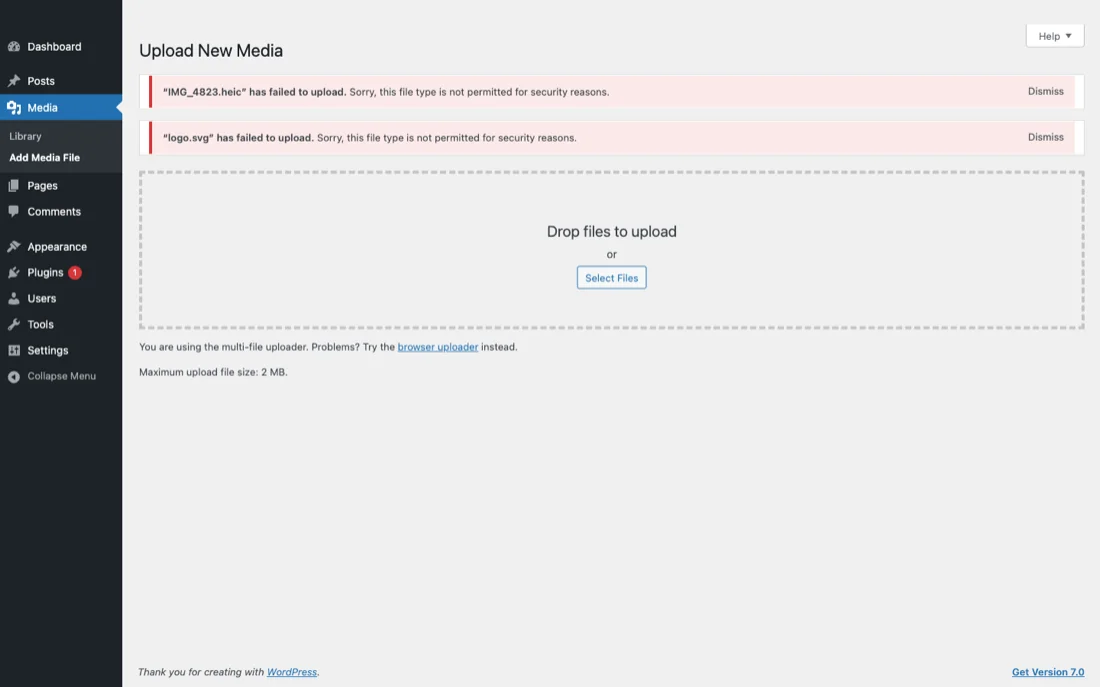
upload_max_filesizeis too low. - "Sorry, this file type is not permitted for security reasons" → the file extension isn't allowed (HEIC is the usual suspect).
- "Unable to create directory" →
wp-content/uploadsisn't writable. - Blank screen, no message → JavaScript error or a plugin conflict.
Cause 1: iPhone HEIC/HEIF format isn't supported
iPhone's default photo format is HEIC. Stock WordPress doesn't accept it, so the browser upload bounces back with "Sorry, this file type is not permitted for security reasons."
Fix (pick one)
- Switch the iPhone capture format. Settings → Camera → Formats → Most Compatible. Future photos will be JPEG. Existing HEIC files stay as HEIC.
- Convert existing HEICs to JPEG. AirDrop to a Mac auto-converts. On Windows, use CloudConvert or similar.
- Install a HEIC-support plugin. "WP HEIC Upload" lets WordPress accept HEIC directly.
- Use an iPhone app that handles HEIC. SnapPress reads HEIC and converts to JPEG on send — no iPhone setting changes needed.
For a deeper look at the HEIC pitfalls (including WordPress 6.7's partial HEIC support), see iPhone HEIC Photos and WordPress.
Cause 2: File size exceeds the upload limit
upload_max_filesize and post_max_size in PHP set the ceiling for a single upload. A lot of shared hosts default to 2–8 MB. A modern iPhone photo is 5–10 MB. You can probably see where this is going.
Fix
- Check the current limit. WP Admin → Media → Add New shows "Maximum upload file size: XX MB" at the bottom.
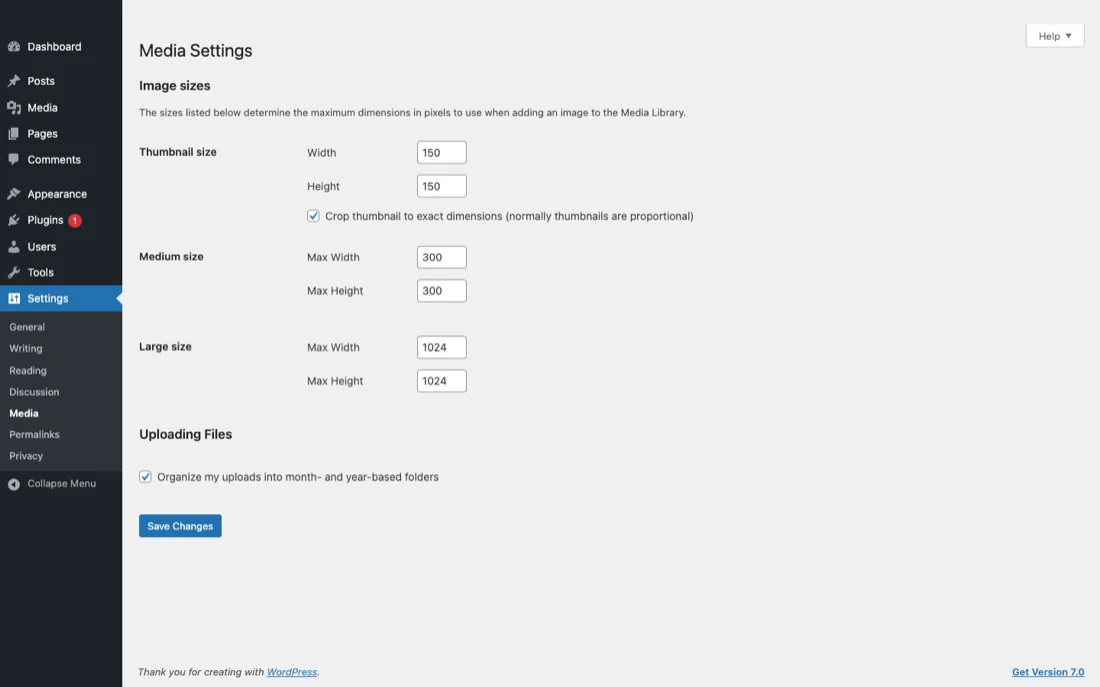
- Edit php.ini. Set
upload_max_filesize = 32Mandpost_max_size = 32M. Most managed hosts expose this in the control panel. - Override via .htaccess. Add
php_value upload_max_filesize 32Mandphp_value post_max_size 32M. - Compress before upload. Fastest fix if you can't touch server settings. SnapPress applies 3-tier quality presets automatically.
Cause 3: PHP memory limit is too low
When you upload, WordPress fires off thumbnail generation at multiple sizes. A 4000px+ original can blow past PHP's memory limit mid-process, and you end up with a generic "HTTP error" that doesn't tell you what actually happened.
Fix
- Add
define('WP_MEMORY_LIMIT', '256M');towp-config.php. - Set
memory_limit = 256Minphp.ini. - If the host caps memory below 256M, resize the original to ~2000px before upload to reduce processing load.
Cause 4: wp-content/uploads permissions error
Uploaded images go into wp-content/uploads. If the web server can't write there, you get "Unable to create directory." Usually shows up right after a server migration or a manual FTP transfer.
Fix
- Set
wp-content/uploadsto 755 (or 775) via FTP/SSH. - Set files inside it to 644.
- Confirm the directory is owned by the web server user (
www-data,apache, etc.).
Cause 5: Plugin conflict
Smush, EWWW, ShortPixel — and on the security side, Wordfence and Sucuri — all intercept the upload pipeline. When one of them updates and changes how it handles files, it can collide with the other and break uploads while the rest of wp-admin still looks perfectly fine.
Fix
- Deactivate all plugins, then test the upload.
- If it works, reactivate plugins one by one and re-test after each.
- Once you find the culprit, adjust its settings or swap to an alternative.
Cause 6: .htaccess or WAF blocking the request
Sometimes a security-hardening .htaccess rule or a host-level WAF (mod_security, Cloudflare WAF) misclassifies a multipart upload as an attack and just blocks it.
Fix
- Back up
.htaccess, then restore the WordPress default block and test. - In the host control panel, whitelist
/wp-admin/in the WAF rules. - Ask the host to check
mod_securitylogs for blocked rules.
Cause 7: Application Password is misconfigured
External apps and REST API uploads require an Application Password (WordPress 5.6+). Missing one, or a user role that's too low, gives you a 401 or 403.
Fix
- WP Admin → Users → Profile → Application Passwords → create a new one.
- Confirm the user role is Author or higher. Subscriber can't upload media.
- Make sure the site runs on HTTPS. Many hosts disable Application Passwords over HTTP.
Cause 8: Unstable Wi-Fi or mobile connection
A brief connection drop mid-upload kills the transfer. The bigger the image, the longer the transfer window, and the more likely it is to hit a network hiccup before it finishes.
Fix
- Retry on a stable Wi-Fi connection.
- Add
set_time_limit(300);towp-config.phpto extend the timeout. - Use an app with background upload and automatic retry. Mobile browsers often pause uploads the moment the tab goes to the background.
When the failure happens in the WordPress app
If the failure happens in the official WordPress mobile app rather than a browser, the diagnostic changes. The app uploads through the post editor, so an image problem often shows up as "Couldn't save post" — a message that tells you very little about what's actually wrong.
Causes specific to the app
- The Jetpack connection dropped — self-hosted (WordPress.org) sites need Jetpack for the official app. When it drops, login still works but media uploads fail. Reconnect from the Jetpack settings in wp-admin.
- Application Passwords are disabled site-wide — some security plugins and hosts turn them off, which prevents the app from ever establishing a connection. Open
https://yoursite.com/wp-json/in a browser: ifauthenticationis an empty, this is your cause. - The account lacks upload_files — this returns
rest_cannot_create. Full diagnostic steps are in our WordPress upload permission error guide. - Stale app-side cache — if none of the above apply, removing the site from the app and reconnecting often clears it.
Causes 1 through 8 above (HEIC, file size, memory limit) still apply when uploading through the app. To tell app-side from server-side, upload the same image from a desktop browser in wp-admin: if that succeeds, the problem is the app; if it fails too, the problem is your server.
If iPhone uploads keep failing, a dedicated app is the shortest path
If you enjoy debugging server config, the eight fixes above will get you there. But if you upload from iPhone routinely and don't want to do this every single time —
SnapPress is a purpose-built iOS app for bulk-uploading photos to WordPress. It's designed so most of the problems above just don't happen:
- Reads HEIC directly and converts to JPEG on send
- 3-tier quality presets auto-adjust file size to stay under the server limit
- Initial setup uses QR code to issue an Application Password automatically
- Talks to the WordPress REST API directly, sidestepping browser-side plugin conflicts
- Up to 20 photos in a single batch with per-file retry on failure
Free to start (10 photos/month), no account signup. Standard is $0.99/month or a $4.99 one-time lifetime purchase, with Apple's 14-day refund policy.
For broader Media Library workflow and maintenance, also see The Complete Guide to the WordPress Media Library.
Quick-reference: first thing to try, by symptom
| Symptom | First thing to try |
|---|---|
| Only iPhone photos fail | Switch iPhone Camera Format to "Most Compatible," or use SnapPress |
| "Exceeds the maximum upload size" | Raise upload_max_filesize to 32M+, or compress the photo |
| "HTTP error" | Set WP_MEMORY_LIMIT to 256M |
| "Unable to create directory" | Set wp-content/uploads to 755 |
| Intermittent or unexplained failures | Deactivate plugins one by one to isolate the conflict |
Frequently asked questions
What if I don't have access to change server settings?
SiteGround, Kinsta, WP Engine, Bluehost, Hostinger — most managed hosts expose upload_max_filesize and memory_limit in a "PHP settings" panel. If even that's locked down, compressing before upload or using a dedicated app is your workaround.
Does this also apply to WordPress.com?
WordPress.com has different limits and format support per plan. HEIC isn't accepted on most. Business and above open up the REST API, so external apps like SnapPress can work there.
What if isolating the plugin doesn't fix it?
The theme may be the issue. Switch temporarily to a default theme (Twenty Twenty-Four) and retry. If the error disappears, the theme is the cause — report it to the developer or migrate to another theme.
Uploads broke right after a server migration
Almost always a permissions issue. Check the owner and mode of wp-content/uploads via FTP/SSH and re-set if needed. Also verify that wp-config.php has the correct database credentials for the new server.
Uploads work from phone but not from my computer
Probably a browser cache or extension issue. Try incognito mode, a different browser, or disable extensions one at a time. Also make sure the admin URL is fully HTTPS — mixed content can silently break uploads.
If you upload from iPhone and keep running into these errors:
SnapPress handles HEIC, file-size limits, and Application Password setup automatically — one tap to scan a QR code and you're done. Free to start, try it now.
Two steps to start: install the free "SnapPress Connect" plugin on WordPress, then install the iPhone app and pair them with a QR code.
About the author

Founder & CEO, 37Design
Founder & CEO of 37Design, a web and AI consultancy based in Tokyo, Japan. Built SnapPress to eliminate the pain of uploading dozens of iPhone photos to WordPress — one by one.
37design.co.jp