 SnapPress
iPhone HEIC Photos to WordPress: What Actually Works in 2026
Short answer: WordPress 6.7 accepts .heic uploads natively, but only if your server runs ImageMagick with libheif. On hosts without it, the file uploads but thumbnails break silently. Check Tools, Site Health, Info, Media Handling before relying on direct upload. If your host doesn't support HEIC, convert on-device to JPEG at the moment of upload instead of switching your camera to JPEG.
Every iPhone sold since 2017 takes photos in HEIC format by default. Every WordPress site built before 2024 rejected HEIC files on upload. This mismatch has caused more confusion than any other format issue I've dealt with in 15 years of building WordPress sites.
The situation got better in late 2024 when WordPress 6.7 added native HEIC support. But "better" and "solved" aren't the same thing. There are still hosting environments where HEIC uploads fail silently, plugins that choke on the format, and a lot of conflicting advice floating around forums.
Here's what I've learned from actually dealing with this across dozens of client sites.
What HEIC Actually Is
HEIC (High Efficiency Image Container) uses the HEIF image format with H.265 compression. Apple adopted it in iOS 11 because it produces files roughly 40-50% smaller than JPEG at the same visual quality. A typical iPhone photo that would be 6MB as a JPEG comes out around 3MB as HEIC.
That size difference matters when you're uploading over cellular, and it matters for storage on your WordPress server. Smaller files, same quality. The format itself has no real downside.
Compatibility is the downside. For years, almost nothing outside Apple's ecosystem could open HEIC files. Windows added support in 2018. Android in 2019. WordPress didn't add it until version 6.7 in late 2024, and even then, it depends on your server having the right image processing library installed.
HEIC also stores richer metadata than JPEG: 10-bit color depth instead of 8-bit, broader Display P3 color gamut instead of sRGB only, and HDR gain maps that let modern displays render highlights with extra punch. Flatten to JPEG and you lose all three.
Why Does WordPress Reject HEIC By Default?
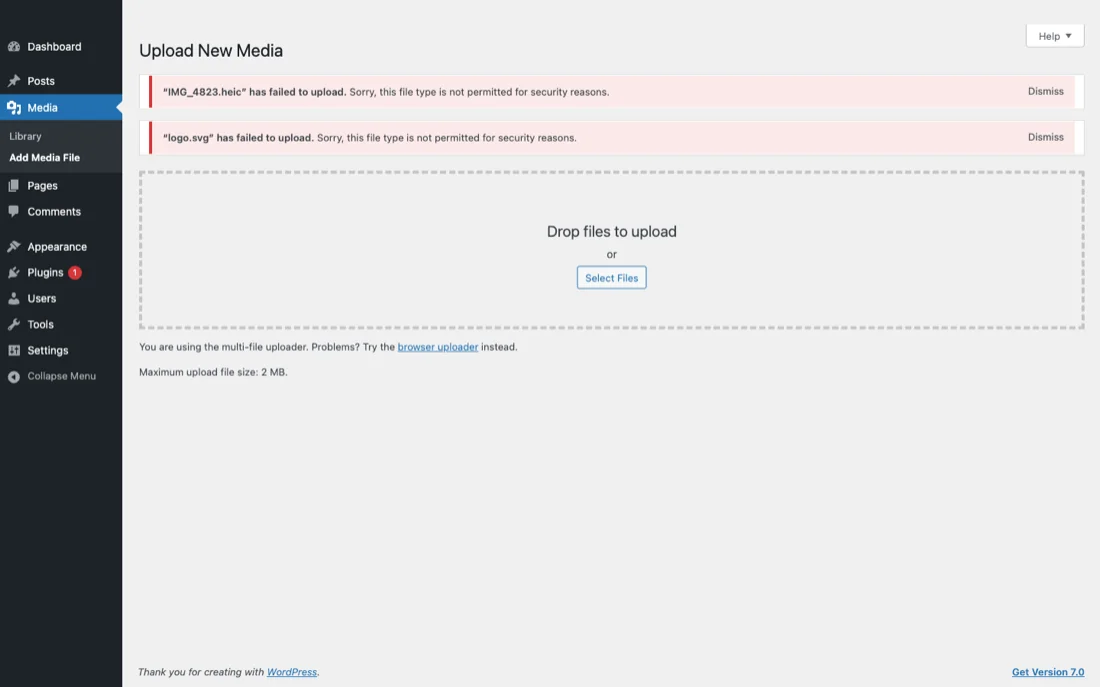
Before WordPress 6.7, dropping a .heic file into the Media Library triggered the dreaded "Sorry, this file type is not permitted for security reasons" message. The reason isn't actually security in the malware sense. It's a whitelist.
WordPress validates every upload through wp_check_filetype_and_ext(), which compares the extension and MIME type against the hardcoded list in get_allowed_mime_types(). If the combination isn't on the list, the upload is rejected before it reaches the Media Library. The "security" framing exists because allowing arbitrary file types could let an attacker upload an executable disguised as an image, but in practice the filter is just a strict allowlist.
For HEIC the problem ran on two levels. image/heic wasn't in the default list, so the allowlist check killed the upload before it got anywhere. But even if you forced the MIME type through with a filter, the underlying PHP image libraries (GD, ImageMagick) couldn't decode the format on most servers. WordPress was being honest by rejecting it — no point accepting a file the system couldn't process. 6.7 fixed both: it added image/heic and image/heif to the allowlist and taught the image editor classes to dispatch HEIC to ImageMagick when libheif is available.
WordPress 6.7 HEIC Support: What Changed
Before 6.7, the workaround was either converting every photo to JPEG before uploading (tedious) or adding a code snippet to functions.php to whitelist the MIME type (risky if your server can't actually process the file). I've seen both approaches break sites in subtle ways: the whitelist approach causes broken thumbnails, and the manual conversion approach loses metadata silently.
WordPress 6.7 added HEIC to the list of allowed file types and included basic support for generating thumbnails from HEIC files. If your server has ImageMagick compiled with HEIF support (or libheif for GD), WordPress can now handle HEIC natively.
That's a big "if."
Where it works
Most modern managed hosting providers (Cloudways, Kinsta, SiteGround on their newer infrastructure) have ImageMagick with HEIF support. If you're on one of these hosts with WordPress 6.7 or later, HEIC uploads should just work.
Where it doesn't
Shared hosting on older infrastructure is hit or miss. Many budget hosts run older versions of ImageMagick that don't include HEIF support. The upload might succeed (the file lands on the server), but WordPress can't generate thumbnails. You end up with a full-size HEIC file in your Media Library and broken thumbnail placeholders everywhere.
There's no clean error message when this happens. The Media Library just shows a generic icon instead of a preview. I've had clients report this as "my photos aren't uploading" when in fact the photos uploaded fine, they just look broken in the admin. If you want a deeper walk-through of how the Media Library should behave when everything works, see my WordPress Media Library guide.
Hosting Provider HEIC Support: A Comparison Table
I spent a weekend testing the same iPhone HEIC file across five major hosts to see which processed it cleanly versus which silently broke thumbnails. Results below, current as of early 2026.
| Host | HEIC Upload Accepted | Thumbnails Generated | ImageMagick + libheif | Notes |
|---|---|---|---|---|
| Kinsta | Yes | Yes | Yes (ImageMagick 7 + libheif) | Cleanest experience. AVIF also works. |
| Cloudways (Vultr/DO) | Yes | Yes | Yes | Depends on stack version. Newer servers fine. |
| WP Engine | Yes | Yes | Yes | Native HEIC support added in 2024 platform update. |
| SiteGround | Yes | Partial | Mixed | Newer plans work. Older shared environments fail thumbnails. |
| Bluehost (shared) | Yes | No | No (older ImageMagick) | Upload completes, but thumbnails broken. Convert before upload. |
The pattern's clear: premium managed WordPress hosts have invested in modern image libraries, while budget shared hosting still runs older stacks where HEIC support is patchy at best. On Bluehost shared or a similarly priced provider, converting before upload is the pragmatic move — fighting the server is the other option, but it's less fun.
How to Check If Your Server Supports HEIC
Go to Tools > Site Health > Info > Media Handling in your WordPress admin. Look for the ImageMagick version and supported formats. If you see "HEIC" or "HEIF" in the list, you're good.
If you don't see it, or if you're on GD instead of ImageMagick, HEIC thumbnails won't generate. At that point you're either asking your host to upgrade ImageMagick, or converting your photos before uploading. There's no third option on the server side.
The "Convert Before Upload" Trap
"Just convert your HEIC files to JPEG first" is the most common advice on WordPress forums. It sounds reasonable. It's also one of the worst things you can do if image quality matters, because the default conversion path on iPhone is lossy in ways most people don't realize.
Here's what happens when you let iOS auto-convert HEIC to JPEG (the AirDrop-to-Windows path, the Mail Drop attachment path, the share-sheet-to-most-apps path):
- Color gamut compression. The original HEIC is stored in Display P3, a color space about 25% larger than sRGB. The JPEG export gets clamped to sRGB. Saturated reds, oranges, and greens flatten visibly.
- Bit depth reduction. HEIC stores 10-bit color (1024 values per channel). JPEG is locked to 8-bit (256 values). Smooth sky gradients can develop visible banding after conversion.
- HDR gain map loss. iOS embeds an HDR gain map alongside the SDR pixel data so capable displays can render brighter highlights. JPEG has no equivalent. Shadow and highlight detail get crushed during the export.
- EXIF stripping (sometimes). Depending on which app does the conversion, GPS coordinates, lens info, and camera settings may be dropped. If you rely on metadata for organization or geotagging, check before converting in bulk.
- File size inflation. The whole reason HEIC exists is compression. A 3MB HEIC typically balloons to 6-8MB as a JPEG at quality 85, doubling your storage usage.
The trap is that all of these losses are invisible at thumbnail size. You only notice when someone zooms in, or prints, or views the image on a wide-gamut display. By then it's too late, the JPEG is the file you have.
A smarter approach is to convert at the moment of publication, with a tool that preserves what matters and flattens only what WordPress needs flattened. That's the design constraint behind every dedicated upload tool worth using.
The Conversion Problem on iPhone Itself
Converting HEIC to JPEG before uploading sounds simple. On a laptop, it is. Preview on macOS can batch-convert files in seconds. On Windows, the Photos app handles it.
On an iPhone, it's a different story. There's no built-in batch converter. You can change your camera settings to shoot in JPEG instead of HEIC (Settings > Camera > Formats > Most Compatible), but then you lose the 40-50% file size advantage on every photo you take, not just the ones going to WordPress.
Some people use the Shortcuts app to build a HEIC-to-JPEG converter. It works, but it's another manual step in your workflow, and the converted files are larger. You're trading one problem for another.
The kicker: your iPhone already converts HEIC to JPEG automatically in some situations. Email a photo or AirDrop it to a Windows PC, and iOS handles the conversion on the fly. But upload through a browser or the WordPress app and it sends the original HEIC file, no setting to change that. If you frequently push 10-20 photos at a time from iPhone to WordPress, take a look at my notes on bulk uploading images from a phone for techniques that survive the iOS quirks.
What SnapPress Does with HEIC
When I built SnapPress, HEIC handling was one of the first things I had to figure out. The approach is straightforward: the app reads your original HEIC file, converts it to JPEG locally on your iPhone before uploading, and sends the JPEG to WordPress.
This means it works with every WordPress site regardless of server configuration. Your host doesn't need HEIF support in ImageMagick. WordPress doesn't need to be version 6.7. The file that arrives on your server is a standard JPEG that every WordPress installation since version 1.0 can handle.
The conversion happens on-device and takes a fraction of a second per photo. You don't see it. You don't configure it. You select your photos, tap upload, and JPEG files appear in your Media Library with thumbnails, previews, and everything working correctly.
Getting that on-device conversion stable wasn't free, by the way. iOS gives Share Extensions a tiny memory budget, and decoding twenty HEIC photos at once will crash the extension if you load them all into memory naively. I wrote about how I fixed that in debugging the iOS Share Extension memory crash if you're curious about the implementation side.
Is this the "right" approach? Depends on what you care about. If you want the absolute smallest file size, uploading native HEIC to a server that supports it is technically better. If you want something that works on every WordPress site without checking server configurations, automatic conversion is the safer bet. I compared a handful of competing iOS apps in my best WordPress photo upload apps roundup if you want to see how SnapPress stacks up against alternatives.
I chose reliability over theoretical optimization. In my experience, most WordPress users don't know or care what ImageMagick version their host is running. They just want their photos to show up.
What About Jetpack and the WordPress Mobile App?
The official WordPress mobile app (which leans on Jetpack for many features) has handled HEIC inconsistently over the years. Recent versions do convert HEIC to JPEG before uploading, similar to what SnapPress does, but the conversion runs through Jetpack's image processing pipeline which means you need a Jetpack connection and an active WordPress.com account tied to your site.
That works fine if you're already using Jetpack. It's frustrating if you're not, because the app sometimes refuses to upload at all without the connection. I wrote a separate guide on uploading photos to WordPress without Jetpack for readers who want a leaner stack. The short version: if Jetpack isn't part of your workflow, use a third-party app that talks to the WordPress REST API directly. You skip the WordPress.com dependency entirely.
The Other Format You'll Run Into: HEIF and AVIF
HEIC is technically a container format that wraps HEIF images. You'll sometimes see files with a .heif extension instead of .heic. WordPress 6.7 handles both the same way.
AVIF is a newer format that's gaining traction on the web (it's what Netflix and many CDNs use for image delivery). WordPress added AVIF support in version 6.5. Some newer iPhones can take photos in AVIF, though it's not the default yet.
For now, HEIC is what you'll deal with 99% of the time if you're uploading iPhone photos. But AVIF is the format to watch — it compresses even tighter than HEIC and has broader cross-platform support.
AVIF on iPhone 16: What's Coming Next
iPhone 16 ships with full AVIF support across iOS 18: Photos reads AVIF files, Safari renders them inline, and the share sheet treats them as first-class citizens. The camera still defaults to HEIC, but the rendering and decode pipeline is now AVIF-aware end to end.
WordPress is ready. Version 6.5 added image/avif to the allowed MIME types in March 2024, and 6.7 expanded the image processing logic so AVIF files generate proper thumbnails. If your server has a recent ImageMagick build with libavif, the entire pipeline works without configuration.
Why AVIF matters for publishers: it compresses roughly 20% smaller than HEIC at equivalent perceptual quality and 50% smaller than JPEG. It works in every modern browser (Chrome, Firefox, Safari, Edge), unlike HEIC which never had universal browser support. And it's royalty-free thanks to AV1, where HEIC sits on top of HEVC's tangled patent licensing.
The practical difference: HEIC is a capture format you fight with on the way in, AVIF is a delivery format you serve to visitors on the way out. Most workflows end up with HEIC originals from the camera, JPEG or AVIF intermediates in the Media Library, and AVIF served to browsers via a CDN or plugin like ShortPixel. Apple is unlikely to switch the camera default to AVIF until ProRAW and Live Photos are migrated, which is a multi-year project. Optimize your inbound HEIC handling now and let your CDN take care of AVIF on delivery.
My Recommendation
If your hosting supports HEIC (check Site Health) and you're on WordPress 6.7+, upload HEIC files directly. Enjoy the smaller file sizes.
If your hosting doesn't support HEIC, or you manage multiple sites on different hosts and don't want to check each one, use a tool that converts for you. SnapPress does this automatically. The SnapPress Connect plugin handles the site connection, and the app handles the format conversion behind the scenes.
Don't change your iPhone's camera format to JPEG just because WordPress gave you trouble once. HEIC is the better format. The upload tool should adapt, not your camera settings.
Frequently Asked Questions
Will WordPress accept HEIC files in 2026?
WordPress core added native HEIC support in version 6.7, released in late 2024. As of 2026, any site running WordPress 6.7 or later can accept .heic uploads, but only if the underlying server has ImageMagick compiled with HEIF support or a libheif-enabled GD library. On budget shared hosting with older image libraries, the upload may complete but thumbnail generation silently fails. Check Tools, Site Health, Info, Media Handling to confirm your server actually processes HEIC before relying on direct upload.
What's the difference between HEIC and HEIF?
HEIF (High Efficiency Image Format) is the underlying image format, while HEIC (High Efficiency Image Container) is the file extension Apple uses to wrap a single HEIF image. The terms get used interchangeably, but technically HEIC is the container and HEIF is the codec. Apple chose .heic for iPhone photos to distinguish them from .heif files used for image sequences and bursts. WordPress 6.7 treats both extensions identically, so functionally it makes no difference which one you upload.
Why does my iPhone HEIC upload break thumbnails on WordPress?
If thumbnails appear as gray placeholders after a HEIC upload, your server accepted the file but could not generate the resized variants. This usually means your hosting environment is running an older ImageMagick build without libheif, or it falls back to GD which has limited HEIF support. The original file is intact, but every image size WordPress tries to create (thumbnail, medium, large) fails silently. Either ask your host to enable HEIF in ImageMagick, or convert HEIC to JPEG on-device before uploading.
Should I just disable HEIC on my iPhone camera?
I don't recommend it. Switching Settings, Camera, Formats to Most Compatible forces every photo into JPEG, which doubles the storage footprint on your phone and in iCloud and removes 10-bit color depth. You're penalizing your entire photo library to work around one specific WordPress quirk. A better fix is to use an upload tool that converts HEIC to JPEG only at the moment you publish, leaving your originals untouched in the Photos app.
Does AVIF work on WordPress yet?
Yes. WordPress 6.5 added AVIF as an allowed file type in March 2024, and 6.7 expanded the image processing logic. AVIF compresses roughly 20 percent smaller than HEIC at the same visual quality and has wider browser support, which makes it attractive for delivery. The catch is the same as HEIC: your server needs an ImageMagick build with AVIF encode and decode support. Most managed WordPress hosts now ship this by default, but verify under Site Health before assuming it works.
Will iPhone 16 switch from HEIC to AVIF?
Not as the default. iPhone 16 still records photos as HEIC under standard camera settings, but iOS 18 added AVIF support across the system for reading, sharing, and Safari rendering. Apple has not announced a timeline for switching the camera default, and HEIC remains tightly integrated with Live Photos and ProRAW. Expect a multi-year transition where iPhones continue producing HEIC, while AVIF becomes the preferred web delivery format powered by services like Cloudflare Images and modern CDNs.
Send iPhone photos straight to WordPress
SnapPress uploads up to 20 photos at once from your iPhone straight to the WordPress media library, converting HEIC to JPEG on the device. No Jetpack and no WordPress.com account — it authenticates with a standard WordPress Application Password. Free for 10 photos a month.
Two steps to start: install the free "SnapPress Connect" plugin on WordPress, then install the iPhone app and pair them with a QR code.
About the author

Founder & CEO, 37Design
Founder & CEO of 37Design, a web and AI consultancy based in Tokyo, Japan. Built SnapPress to eliminate the pain of uploading dozens of iPhone photos to WordPress — one by one.
37design.co.jp