 SnapPress

Upload Videos to WordPress from Your iPhone
SnapPress Pro now handles video, not just photos. Shoot a clip, pick it in the app, and it lands in your Media Library as a clean H.264 MP4 — no desktop, no FTP, no format juggling. The catch: your host actually has to allow it. Below is the full picture of what's possible now, plus the two server settings that decide whether the upload goes through or bounces.
Quick answer:
- Video upload to WordPress is now a Pro feature
- HEVC/H.265 clips get re-encoded to H.264 MP4 on-device
- Your host needs
video/mp4allowed and a high enough PHP upload limit - Free and Standard plans still upload photos only
What's New With Video
Until now, SnapPress was photo-only. The Pro plan changes that:
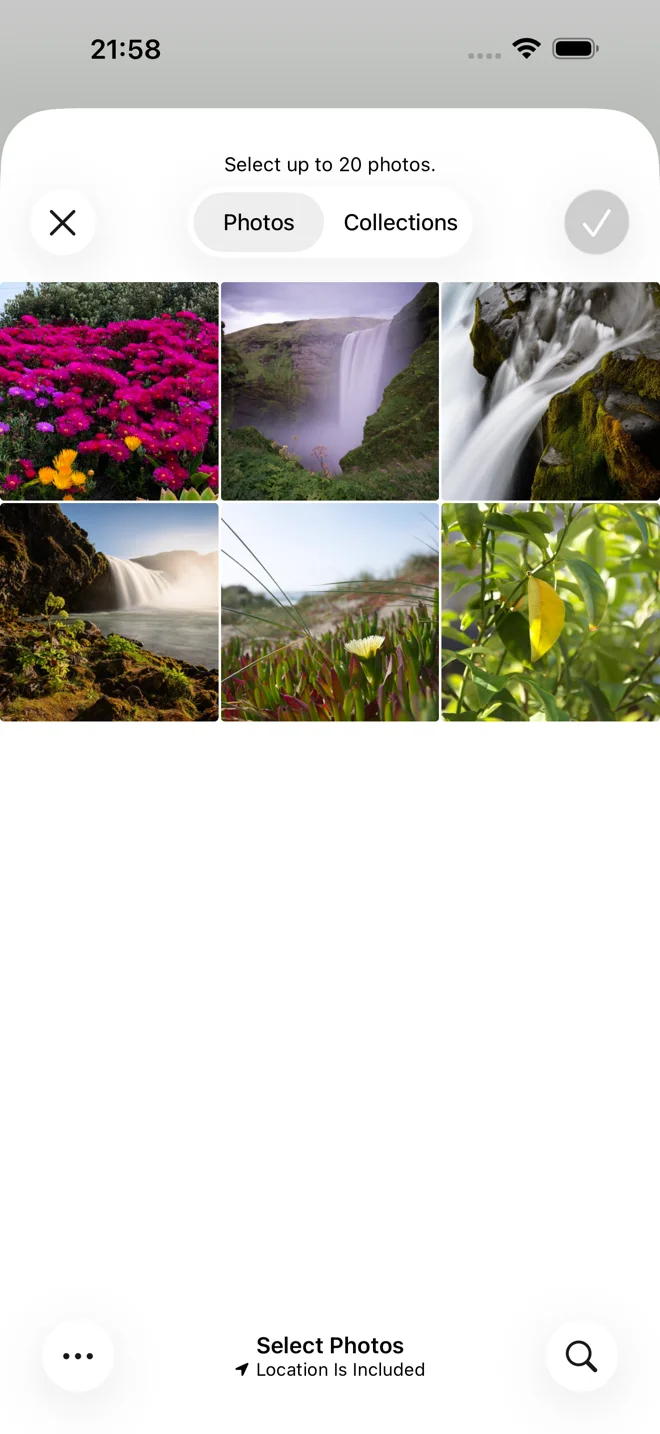
- Pick videos alongside photos. The Pro picker shows both, so you can queue a mixed batch in one go.
- Automatic HEVC → H.264 conversion. iPhones default to HEVC (H.265), and a lot of browsers and themes still choke on it. SnapPress re-encodes each clip to H.264 MP4 on your phone before it hits the server, so playback is reliable in the editor and on the published page.
- No memory crash on long clips. Video files are big. SnapPress streams the upload instead of loading the whole file into RAM, so even longer clips go through without the app dying — and failed uploads retry on their own.
- It lands in the Media Library like a normal asset. Insert it into any post, page, or block from there.
Video upload is part of SnapPress Pro. Free (10 photos/month) and Standard handle photos; Pro adds multi-site and video. If you bought SnapPress before the freemium switch, you already have Pro at no extra charge — the v2.0 freemium launch post has the details.
The Two Server Settings That Decide Everything
Here's the part most people miss: SnapPress sends a perfectly valid MP4 over the WordPress REST API. Whether it actually lands is up to your host, not the app. If the upload bounces, it's almost always one of these two. Set both and you're good to go.
1. Allow the MP4 video file type
A standard single-site WordPress install allows .mp4 (video/mp4) for Administrator and Editor roles out of the box. You might still need to touch something if:
- You're on Multisite. Head to Network Admin > Settings > Upload Settings and confirm
mp4is in the "Upload file types" list. - A security plugin is blocking it. Wordfence, a hardening plugin, or a restrictive config can whitelist or block media types. Make sure video is allowed for whatever account SnapPress authenticates as.
- You're uploading as a lower-privilege user. The account needs the
upload_filescapability. Authors have it; Contributors don't.
If you've ever seen "Sorry, this file type is not permitted for security reasons," that's this one. The photo-side version of the same error is covered in this guide on the file-type-not-permitted error.
2. Raise the PHP upload size limit
This is the one that catches almost everyone who tries video for the first time. WordPress shows your current cap as Maximum upload file size under Media > Add New. A lot of shared hosts default to 2-64 MB — a 15-second 1080p clip blows past that in one shot.
Bump these PHP values (in php.ini, your host's control panel, or their PHP settings UI):
upload_max_filesize = 256Mpost_max_size = 256M(must be equal to or larger than upload_max_filesize)max_execution_time = 300(bigger uploads take longer to process)memory_limit = 256M
On most shared hosts you won't be editing a file — there's a "PHP Settings" or "MultiPHP INI Editor" section in the control panel. After you save, reload Media > Add New and check that the "Maximum upload file size" number actually went up. If you can't reach PHP settings at all, your host's support can do it in a minute, or you may need to be on a plan that allows larger uploads.
Managed and "lite" hosts: a few managed WordPress hosts deliberately block or heavily cap video in the Media Library and push you toward an external video service instead. If your host refuses MP4 no matter what you try, check their media policy before you go deeper down the troubleshooting rabbit hole.
Uploading a Video in SnapPress
- Open SnapPress and pick the WordPress site you want to upload to.
- Tap to add media. On Pro, the picker shows videos alongside photos — choose one or more clips.
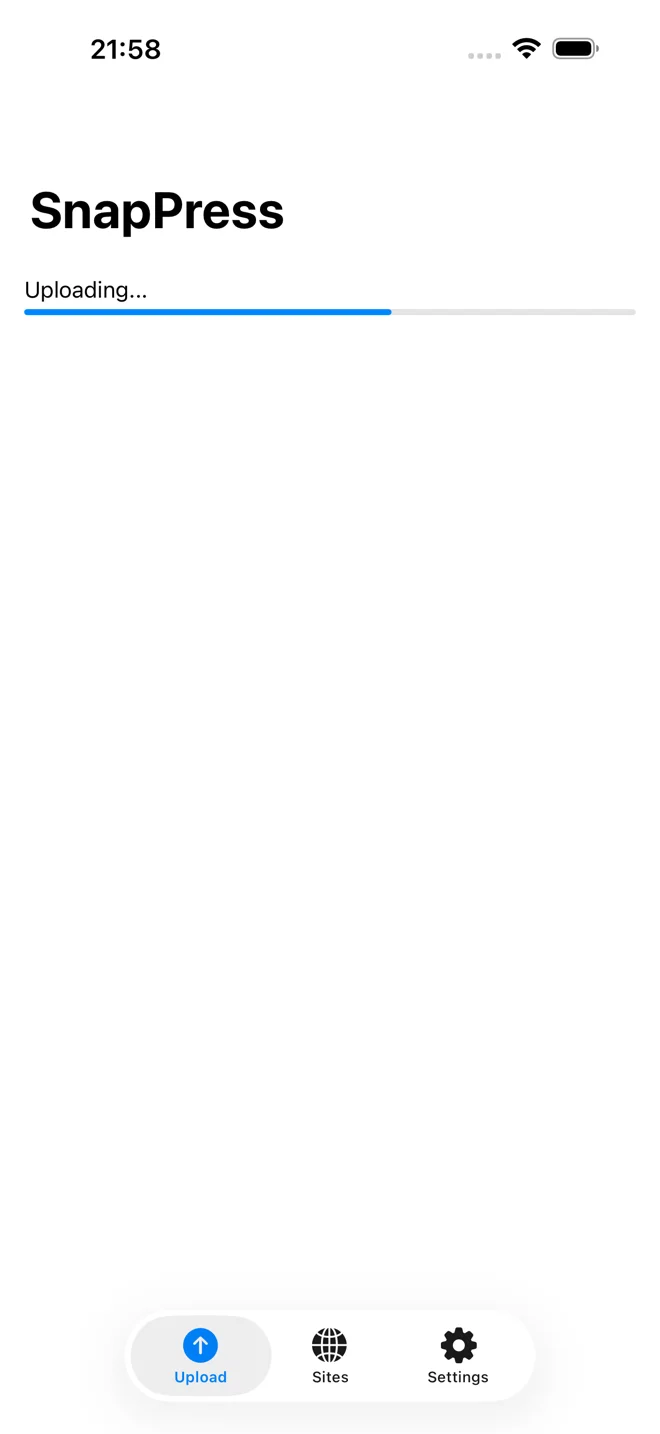
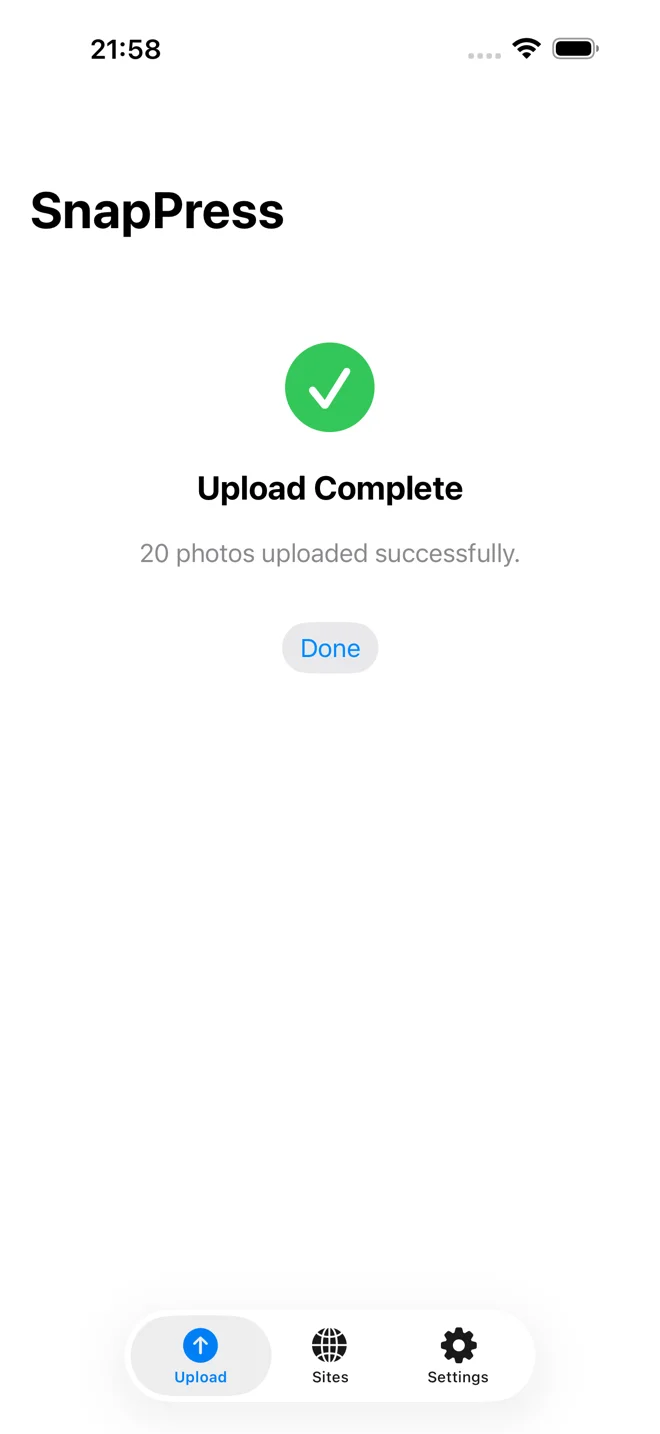
- SnapPress converts each clip to H.264 MP4 (you'll see the progress bar), then uploads it to your Media Library.
- Open your WordPress editor and insert the video from the Media Library into a post or page.
That's the whole flow. Keep clips reasonably short for the web, make sure the server limits are set as above, and your phone-shot video is live in minutes — same fast workflow SnapPress already gives you for batch photo uploads.
Get SnapPress on the App Store →
Send iPhone photos straight to WordPress
SnapPress uploads up to 20 photos at once from your iPhone straight to the WordPress media library, converting HEIC to JPEG on the device. No Jetpack and no WordPress.com account — it authenticates with a standard WordPress Application Password. Free for 10 photos a month.
Two steps to start: install the free "SnapPress Connect" plugin on WordPress, then install the iPhone app and pair them with a QR code.
About the author

Founder & CEO, 37Design
Founder & CEO of 37Design, a web and AI consultancy based in Tokyo, Japan. Built SnapPress to eliminate the pain of uploading dozens of iPhone photos to WordPress — one by one.
37design.co.jp