 SnapPress

WordPress Featured Image Size: 1200×630px Is the 2026 Default
1200×630 pixels (about 1.91:1) is the recommended featured image size for WordPress. It fits every major theme, matches the Open Graph size used by Facebook, X, and LinkedIn, and looks sharp on Retina displays.
Of course, real WordPress sites run into edge cases: themes want different sizes, iPhone photos are too large, social platforms crop things in ways you didn't expect. Below: the right size by theme, social-share dimensions, file-size targets, and how to prep iPhone photos before uploading.
What's a Featured Image in WordPress?
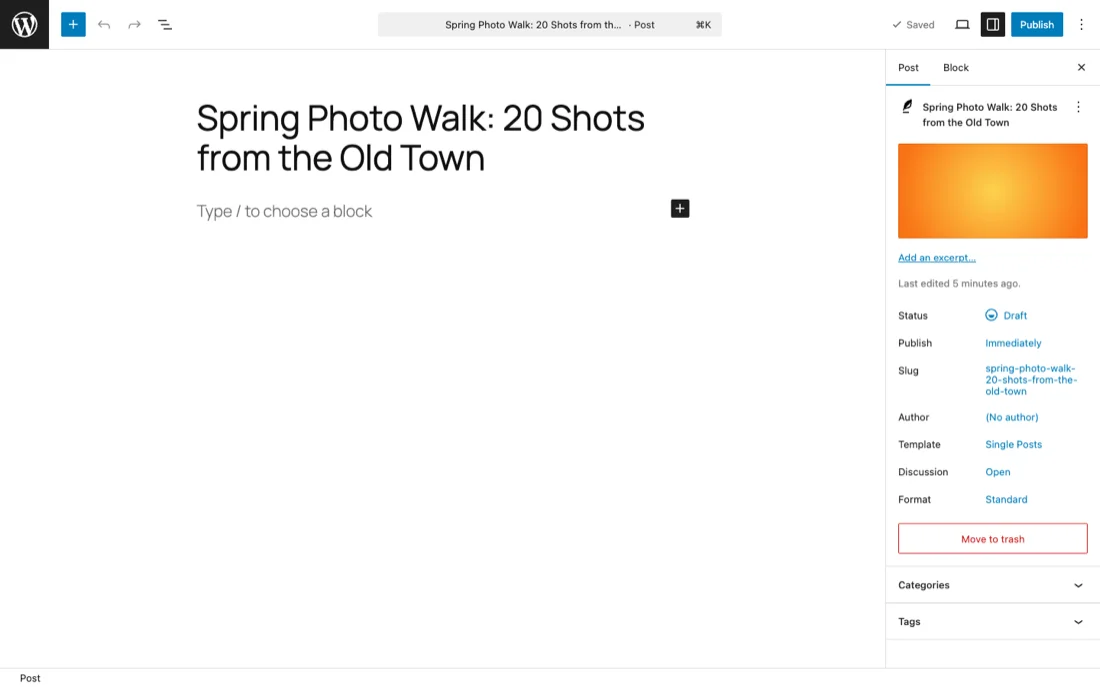
A featured image is the single image WordPress treats as representing a post. It behaves differently from body images: it appears in post listings, related-post modules, and as the social sharing thumbnail — everywhere the post is referenced without being opened.
Where it appears and at what dimensions is decided by your theme. The same image can get cropped square in an archive listing and displayed wide at the top of the post. So the goal isn't "match one theme's ratio" — it's "survive every crop." That's what 1200×630px gives you.
One thing that trips people up: setting a featured image doesn't guarantee it appears at the top of the post body. That's a theme decision, and it's the source of most "my featured image isn't showing" confusion.
How to Set a Featured Image
In the block editor:
- Open the "Post" tab in the right sidebar
- Expand the "Featured image" panel
- Click "Set featured image"
- Choose from the Media Library or upload a new file
- Add alt text, then confirm with "Set featured image"
If the sidebar's hidden, open it with the gear icon at the top right. If the panel itself is missing, check the three-dot menu at the top right, then Preferences, then Panels, and confirm Featured image is enabled.
The classic editor works the same way, just in a different place (lower right column, "Featured image").
The Right Size: 1200×630px
If you only remember one number, make it 1200×630 (≈1.91:1). As of 2026, this is the most broadly compatible featured image size for WordPress.
Why 1200×630?
It's also the recommended Open Graph Protocol (OGP) image size for Facebook, X (Twitter), and LinkedIn. A featured image isn't just the article thumbnail — it gets reused as the OGP image when your post is shared. Build at 1200×630 once and the same asset works as a thumbnail, an OGP image, and a hero.
Always at least 1200px wide
Retina and other 2× pixel-density displays are the default on phones and modern laptops. An 800px-wide image looks soft when rendered at 400px on a Retina screen. For featured images that might also appear as in-content heroes, target 1200px wide minimum, ideally 1920px.
WordPress Image Sizes by Use Case
Featured images are just one of several sizes you'll end up using. Quick reference for the common ones:
| Use case | Recommended size | Aspect ratio | Notes |
|---|---|---|---|
| Featured image (also used as OGP) | 1200×630px | ≈1.91:1 | Best for social sharing |
| Featured image (large in-content hero) | 1920×1080px | 16:9 | Good for wide blog layouts |
| In-post image | 1200×800px | 3:2 | Same ratio as iPhone photos |
| Archive thumbnail | 400×300px | 4:3 | WordPress auto-generates this |
| Header image | 1920×600px | ≈3.2:1 | Varies by theme |
| Logo | ~250×100px | Variable | SVG preferred |
Featured Image Sizes by Theme (Cocoon, SWELL, JIN:R, Astra)
Themes apply different crop rules and have their own recommended dimensions. Here's what the common WordPress themes expect.
Cocoon (Free)
One of the most popular free themes in Japan. Renders featured images at roughly 1280px wide by default and outputs OGP images at 1200×630px automatically. Source images of at least 1280×720px work cleanly.
SWELL (Premium)
Recommends 1600×900px (16:9) for featured images. Its card layouts and sliders are designed around a wide aspect ratio, so 3:2 or 4:3 sources will show visible top/bottom padding.
JIN:R / SANGO
Tuned for 1200×675px (16:9). Hero blocks and post cards fit that ratio without cropping.
Astra / GeneratePress / Kadence
The lightweight international themes. Flexible about size — 1200×630px fits virtually all of their stock layouts.
How to Check Your Theme's Recommended Size
To find the exact size your theme expects:
- Check the theme's official documentation
- Open Appearance → Customize and look for sizes shown next to image upload fields
- Right-click an image on the theme's demo site and inspect its rendered dimensions
For broader rules about how WordPress itself stores and serves images, see our complete WordPress Media Library guide.
Fixing Featured Images That Get Cropped on Social
If your image looks fine on the post but gets sliced when shared on Facebook or X, the cause is almost always an aspect-ratio mismatch between your image and the platform's display window.
Display Sizes by Social Platform
| Platform | Recommended size | Display ratio |
|---|---|---|
| 1200×630px | 1.91:1 | |
| X (Twitter) large image card | 1200×628px | 1.91:1 |
| 1200×627px | 1.91:1 | |
| Hatena Bookmark | 1200×630px | 1.91:1 |
| LINE | 1200×630px | 1.91:1 |
Keep Important Elements Centered
Some platforms crop a few pixels off the edges in thumbnail previews. Place text, logos, and faces within the central 60–70% of the frame to stay safe everywhere.
Override the OGP Image per Post
If you want to ship a different image to social than to the post itself, SEO plugins like All in One SEO, Yoast SEO, and SEO SIMPLE PACK let you set a per-post OGP image. That way the featured image can be a vertical brand graphic while the OGP image stays horizontal and promotional.
File Format and Size Optimization
Pixel dimensions matter, but so do format and file size. Sloppy compression slows your site down and hurts SEO — Core Web Vitals in particular.
Recommended Formats: WebP > JPEG > PNG
WebP is the strongest default in 2026: roughly 70% of the size of an equivalent JPEG and 50% of a PNG at the same visual quality. All major browsers support it, and WordPress 5.8+ handles WebP natively.
- Photographs: WebP or JPEG (quality 80–85%)
- Illustrations, screenshots, transparent graphics: WebP or PNG
- Animations: animated WebP (preferred) or GIF
Target File Size: Under 200KB
Keep featured images under 200KB; aim for around 100KB. Anything heavier slows mobile load times and inflates LCP in Core Web Vitals.
Use a WordPress Optimization Plugin
For automatic compression at upload time, these are the standard picks:
- EWWW Image Optimizer — free, with WebP conversion
- Smush — strong bulk compression
- ShortPixel — paid, excellent compression/quality balance
- Converter for Media — focused on WebP and AVIF conversion
How to Use iPhone Photos as Featured Images
Many WordPress publishers want to use iPhone photos directly as featured images. iPhone photos are large and use HEIC, so they need a few steps before upload. For the HEIC format specifically, see our guide to HEIC photos and WordPress.
Typical iPhone Photo Dimensions
iPhone 14/15/16 photos are 4032×3024px (~12MP, 3:2) by default. They're saved as HEIC (a more efficient version of HEIF), about 2–4MB per file.
Three Things to Do Before Uploading
- Convert HEIC to JPEG or WebP. Some themes and plugins still don't handle HEIC well. JPEG or WebP is the safe choice for portability.
- Resize. 4032×3024px is overkill. Downscale to around 1200×800px or 1920×1280px.
- Compress. Export at quality 80–85% to keep the file under 200KB.
Resize Inside the iPhone Photos App
Since iOS 17, the Photos share sheet exposes a "Choose HEIC or JPEG" option that makes format conversion painless. The Shortcuts app's "Resize Image" action also handles batch resizing.
Automatic Resizing and HEIC Conversion with SnapPress
If you'd rather not do this by hand on every upload, SnapPress is built for exactly this case. It batch-uploads iPhone photos straight to WordPress with the following steps automated. For multi-photo workflows specifically, see our guide to bulk uploading images from your phone.
- HEIC → JPEG conversion happens automatically before upload
- Three quality presets — Original, Medium, Small — with Medium tuned for web display
- Up to 20 photos per batch with a single tap
- Photos land directly in the Media Library, ready to assign as featured images
This is especially useful for bloggers who shoot on the phone and for WooCommerce store owners who need to publish product photos quickly after a shoot. For an end-to-end photo-to-post flow, see our WordPress photography workflow.
Common Featured Image Mistakes
Text too small for thumbnails
When you add text to a featured image, size the largest characters at 10% of the image height or more. On 1200×630px that means at least 60px tall. The result has to be readable when scaled down to thumbnail size (around 400×210px).
Uploading vertical photos as-is
Portrait-oriented photos (3:4, 9:16) end up cropped at the top and bottom in horizontal featured-image slots. Crop to a landscape ratio before uploading.
Using low-resolution images
Low-res images from the web (around 500px wide) look soft when scaled up. Keep your source at 1200px wide minimum, and respect image copyright.
Leaving file names as "IMG_1234.jpg"
Rename files to describe their contents before uploading — for example, tokyo-cafe-interior.jpg. Descriptive file names help with image search and Media Library lookup. Stick to lowercase ASCII letters, numbers, and hyphens; non-ASCII filenames can get URL-encoded by some servers.
When You Can't Set a Featured Image, or It Doesn't Show
The panel isn't there
- The panel is switched off — three-dot menu, Preferences, Panels, enable "Featured image". This is the most common cause by a wide margin
- The theme doesn't support featured images — without
add_theme_support('post-thumbnails');in the theme'sfunctions.php, the panel never renders. Happens with custom and older themes - Not enabled for that post type — if
register_post_type()omits'thumbnail'fromsupports, the panel is missing on that post type only - Insufficient user capability — uploading a new image requires
upload_files. Subscribers and contributors can't do it
It's set, but it doesn't appear on the site
- The theme doesn't render it in the post body — featured images aren't required to appear at the top of a post. Plenty of themes use them only for listings and social sharing. If it shows in the archive listing, the setting worked
- Thumbnail sizes were never generated — right after a theme switch, the sizes the new theme requests may not exist yet. A plugin like Regenerate Thumbnails fixes this
- Caching — a caching plugin or CDN is serving stale HTML. Purge and re-check
- Only wrong on social — each network caches OGP images. Re-fetch the URL through the X (Twitter) or Facebook debugger tools
If the upload itself is failing, that's a different problem — see Cannot Upload Images to WordPress? 8 Causes and How to Fix Each One.
Frequently Asked Questions
Should featured image sizes be consistent across posts?
Yes. Use the same dimensions for every post. Inconsistent sizes break archive layouts and produce uneven cards. Build a template at one fixed size — 1200×630px is the easiest choice — and reuse it.
Is it OK to upload iPhone photos directly?
A 4032×3024px file is too heavy for the web. Resize to 1200–1920px wide, or use an app like SnapPress that handles resizing and HEIC conversion automatically during upload.
Do the sizes in Settings → Media change the featured image?
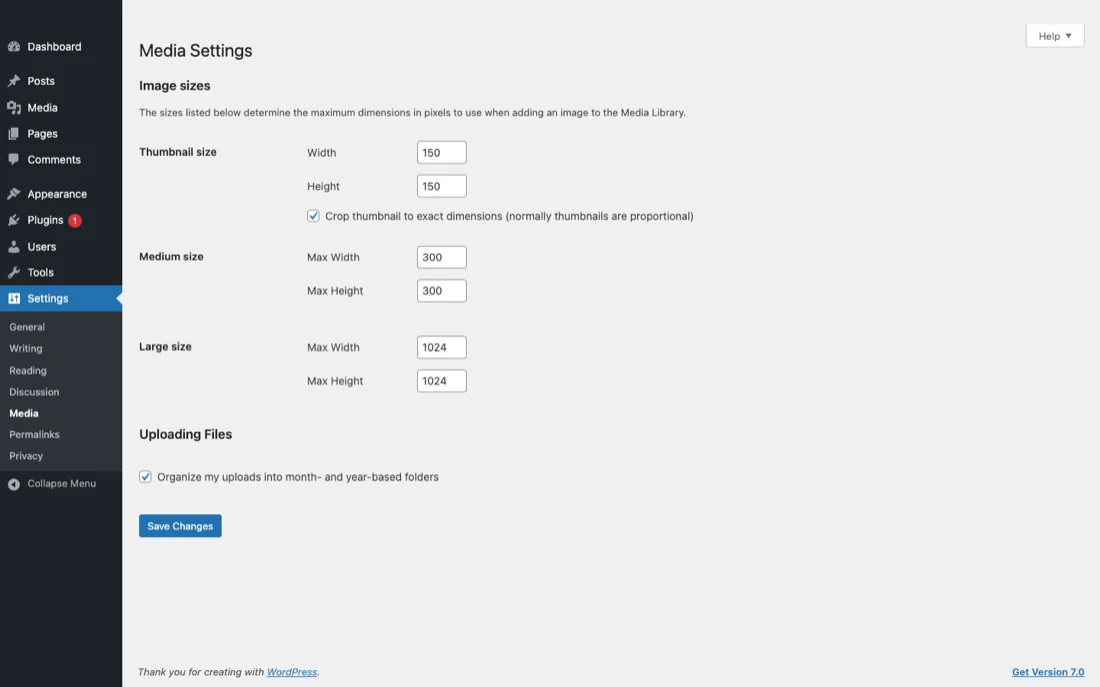
The Thumbnail, Medium, and Large values in Settings → Media control the auto-generated sizes WordPress derives from your original. They don't change the size of the original. Themes can also register their own image sizes on top of these, so check your theme.
Do I need to design for Retina displays?
Yes. To render sharply on 2× displays, supply images at twice the rendered size. A 600px display slot wants a 1200px source. 1200×630px is large enough to look crisp on most Retina layouts.
Does WebP work in every browser?
As of 2026, all major browsers — Chrome, Safari, Firefox, Edge — support WebP. Legacy browsers like IE11 don't, but their traffic share is negligible. If you want extra safety, use a plugin that falls back to JPEG for non-WebP browsers automatically.
Can I use square featured images?
Square images (such as 1080×1080px) work if Instagram sharing is your priority. Facebook, X, and LinkedIn display landscape more efficiently, though. A common pattern is to set the main featured image at 1200×630px and ship a square variant via an OGP plugin for Instagram-specific shares.
Upload iPhone photos straight to WordPress as featured images.
SnapPress converts HEIC to JPEG, resizes for the web, and batch-uploads up to 20 photos to the Media Library in a single tap. Free to start — no Jetpack required; $0.99/mo or $4.99 lifetime for unlimited uploads.
Two steps to start: install the free "SnapPress Connect" plugin on WordPress, then install the iPhone app and pair them with a QR code.
Related: WordPress image size not changing? Here are the nine causes and fixes — and if you want to display multiple images in a row, see how to put images side by side in WordPress.
About the author

Founder & CEO, 37Design
Founder & CEO of 37Design, a web and AI consultancy based in Tokyo, Japan. Built SnapPress to eliminate the pain of uploading dozens of iPhone photos to WordPress — one by one.
37design.co.jp