 SnapPress
WordPress "Sorry, this file type is not permitted for security reasons" — How to Fix (2026)
Short answer: The error means WordPress didn't recognize the file extension or MIME type as one of its allowed formats. The cleanest permanent fix is a small upload_mimes filter in functions.php or a custom plugin. If you're uploading iPhone HEIC photos, the simplest path is to convert to JPEG on-device before upload using a tool like SnapPress. Never enable ALLOW_UNFILTERED_UPLOADS in wp-config.php as a permanent fix — it disables every upload safety check WordPress has.
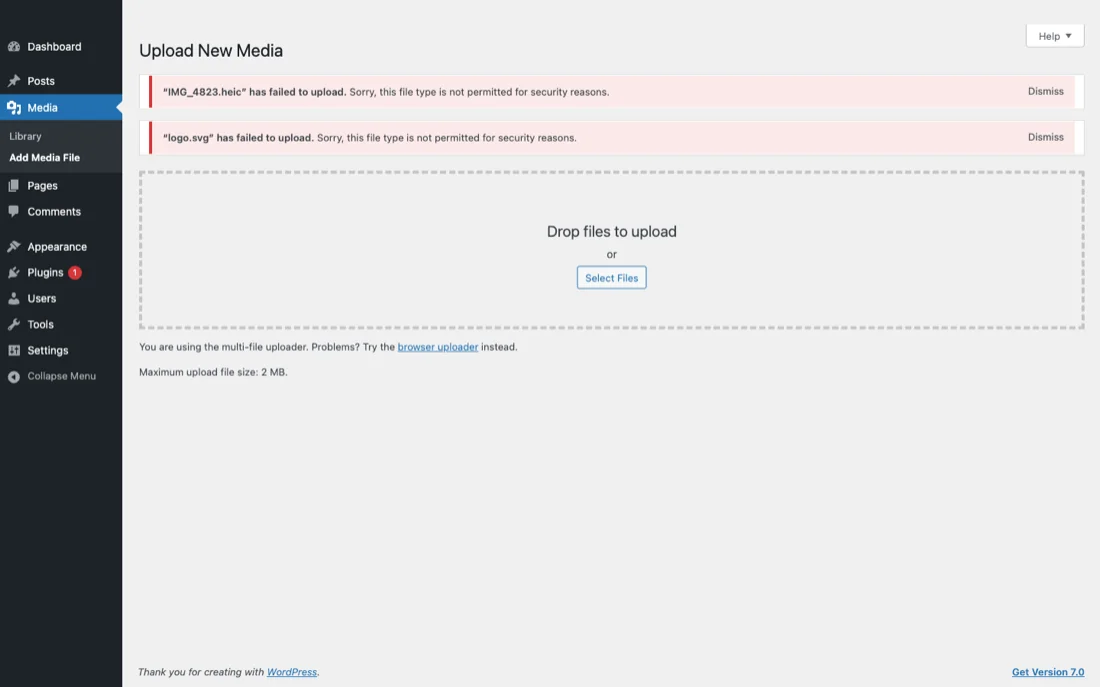
If you've hit "Sorry, this file type is not permitted for security reasons" on WordPress, you're not alone. It's one of the most-searched WordPress error messages out there, and the wording is misleading — WordPress didn't detect anything malicious. It just hit a hardcoded allowlist and your file extension or MIME type isn't on the list.
Below: why the error fires, four production-tested ways to kill it permanently, the security trade-offs of each, and a per-format solution. You'll leave knowing which method fits your situation and how to avoid breaking the site in the process.
Why This Error Happens (The MIME Type Allowlist)
Every WordPress upload passes through the function wp_check_filetype_and_ext(). That function compares two things against a hardcoded allowlist:
- The file extension (the part after the dot in the filename)
- The MIME type detected by PHP's
finfoextension
If either of those isn't in the list returned by get_allowed_mime_types(), the upload is rejected with "Sorry, this file type is not permitted for security reasons." The list is defined in wp-includes/functions.php and contains around 60 entries by default — common images, video, audio, archives, and document formats.
The "security" framing exists because the original reason for the allowlist was preventing attackers from uploading executable code (PHP files, shell scripts) and having WordPress serve them back as a URL. In that narrow sense the filter is a real security boundary. But the same filter catches a long list of legitimate formats that simply weren't included in the core list:
- HEIC from iPhone (added in WordPress 6.7, late 2024)
- WebP (added in WordPress 5.8, 2021)
- AVIF (added in WordPress 6.5, March 2024)
- SVG (never added — requires plugin or filter)
- WOFF/WOFF2 fonts (never added)
- STL, OBJ, GLB 3D model formats (never added)
If your WordPress version predates the addition for a given format, or if your host runs a custom build that strips newer MIME types, you'll hit the error even on what should be a supported format.
Temporary Workaround: Check the Extension and File First
Before changing server settings, rule out two simple causes:
The extension is wrong or missing
Files exported from messaging apps sometimes lose their extension or pick up a generic one like .bin. Right-click on the file, rename it to the correct extension (.jpg, .png, etc.), and try the upload again. If it succeeds, the file content was fine; only the extension was the problem.
The file is corrupted
If your browser downloaded the file from a chat or email and the download was interrupted, the file may be truncated. PHP's finfo will detect the wrong MIME type — the file looks like binary garbage instead of an image. Re-download the original from the source and retry.
These two checks take 30 seconds and resolve about 20% of the "this file type is not permitted" reports I see. The remaining 80% are real allowlist issues that need one of the permanent fixes below.
The 4 Permanent Fixes
Fix 1: Add the MIME type via upload_mimes filter (Recommended)
The cleanest production fix. Drop the following into your child theme's functions.php, or — better — into a tiny custom plugin so the change survives theme updates:
<?php
add_filter('upload_mimes', function($mimes) {
  $mimes['heic'] = 'image/heic';
  $mimes['heif'] = 'image/heif';
  return $mimes;
});

add_filter('wp_check_filetype_and_ext', function($data, $file, $filename, $mimes) {
  $filetype = wp_check_filetype($filename, $mimes);
  if (in_array($filetype['ext'], ['heic', 'heif'], true)) {
    $data['ext']  = $filetype['ext'];
    $data['type'] = $filetype['type'];
  }
  return $data;
}, 10, 4);
Replace heic and image/heic with whatever extension and MIME type you need. The first filter adds the type to the allowlist. The second filter handles a subtle bug: on many servers, PHP's finfo reports unusual MIME types as application/octet-stream, which causes wp_check_filetype_and_ext() to reject the upload even though the extension is allowed. The second filter forces the recognition when the file extension matches.
For a deeper walkthrough specifically focused on HEIC, see WordPress Allowed MIME Types: How to Enable HEIC Uploads (2026 Guide).
Fix 2: Use a plugin (WP Add Mime Types)
If you don't want to edit PHP, the WP Add Mime Types plugin (free, 80,000+ installs, actively maintained since 2014) gives you a settings panel with two columns: extension and MIME type. Add a row, save, done. The plugin runs the same upload_mimes filter under the hood.
Two production-tested alternatives:
- File Upload Types by WPForms — checkbox-driven UI with preset entries for HEIC, WebP, AVIF, SVG, and 40+ other formats. Best if you don't know the MIME type string off the top of your head.
- Disable Real MIME Check — a single-feature plugin that turns off PHP's
finfovalidation step. Useful in edge cases where the extension is on the allowlist butfinfomisreports the MIME type. Use sparingly; the trade-off is weaker validation.
Fix 3: wp-config.php ALLOW_UNFILTERED_UPLOADS (Advanced, with warning)
WordPress has an escape hatch in wp-config.php:
define('ALLOW_UNFILTERED_UPLOADS', true);With this constant set, administrators can upload any file type, including PHP scripts. Every MIME type check is bypassed.
Don't use this in production. The constant turns off every upload safety check WordPress has. An attacker who compromises any admin-level account can upload PHP files directly to wp-content/uploads and execute them. Even setups that look safe today often have a forgotten "subscriber-with-admin-role" account from an old plugin or import.
The only legitimate use is a local development environment where you're debugging upload behavior. Comment it out before pushing to staging.
Fix 4: Convert on-device with SnapPress (for iPhone users)
For iPhone photo uploads specifically, the most resilient fix is to convert HEIC to JPEG on the device before the file ever reaches your server. SnapPress reads HEIC from your Photos library, decodes it using the iOS image pipeline that Apple maintains across iOS releases, and uploads a JPEG to your WordPress Media Library via the REST API.
Your functions.php stays untouched. Your upload_mimes filter stays untouched. The file that lands on your server is a standard JPEG that every WordPress install since 2003 has supported.
This is the path I recommend for anyone who manages multiple WordPress sites or isn't comfortable editing PHP. The trade-off is that it only solves the iPhone HEIC case — for other file types you still need one of fixes 1-3.
File Type Specific Solutions
The exact MIME type matters. Production-tested entries for the formats that hit this error the most:
HEIC (iPhone photos)
$mimes['heic'] = 'image/heic';
$mimes['heif'] = 'image/heif';
Always add both. iPhones occasionally produce .heif files for image sequences and bursts. After adding the filter, the WordPress upload completes — but most visitor browsers can't render HEIC, so you also need server-side conversion (ShortPixel) or client-side conversion (SnapPress). See iPhone HEIC Photos and WordPress for the full story.
WebP
$mimes['webp'] = 'image/webp';WordPress 5.8 (mid-2021) added WebP to the core allowlist. If your WordPress version is current, this filter is unnecessary. If you're on an older build or a host with custom restrictions, the filter unblocks WebP upload.
SVG
$mimes['svg'] = 'image/svg+xml';
$mimes['svgz'] = 'image/svg+xml';
Don't stop at the filter. SVG is XML and can contain inline JavaScript that fires in administrator browsers. Always install the Safe SVG plugin (free) which both allowlists SVG and sanitizes incoming files through the svg-sanitizer library, stripping script tags, event handlers, and external entity references. If only trusted designers should upload SVG, wrap the filter in a current_user_can('manage_options') check.
AVIF
$mimes['avif'] = 'image/avif';WordPress 6.5 (March 2024) added AVIF to the core allowlist. The filter is only needed on older installs or custom hosts. AVIF compresses about 20% smaller than HEIC at equivalent perceptual quality and has wider browser support, which makes it the better delivery format if your server has libavif.
MP4 video
$mimes['mp4'] = 'video/mp4';
$mimes['m4v'] = 'video/mp4';
$mimes['mov'] = 'video/quicktime';
These are usually on the core allowlist, but if you're getting the error on MP4 specifically, it's often because the file's MIME type is being detected as video/x-m4v or application/octet-stream. Add the wp_check_filetype_and_ext filter from Fix 1 to force recognition.
ZIP archives
$mimes['zip'] = 'application/zip';
$mimes['7z'] = 'application/x-7z-compressed';
ZIP is on the core allowlist by default but some security plugins (Wordfence, Sucuri) override it because ZIPs can contain executable content. Whitelist in the plugin settings as well as the WordPress filter.
Security Considerations (Why It's Restricted by Default)
WordPress restricts file types by default for one core reason: PHP files in wp-content/uploads can be executed as code on most server configurations. If WordPress accepted any file extension, an attacker who compromised any author or contributor account could upload a .php shell, hit its URL, and run arbitrary code on your server.
The allowlist is the cheapest defense. Even if every other security layer fails — password reuse, plugin vulnerability, supply chain compromise — the upload filter stops PHP from ever reaching the uploads directory.
Three principles when adding to the allowlist:
- Add only what you actually need. If you upload HEIC once a month, add HEIC. Don't pre-emptively allow every format you might possibly need.
- Never allow PHP, executable, or script extensions.
.php,.phtml,.exe,.sh,.cgi,.pl— none of these belong inwp-content/uploadsunder any circumstances. - Sanitize the formats that allow embedded content. SVG (JavaScript), PDF (JavaScript actions), HTML (everything). Use a sanitizing plugin or convert to a flat image format on upload.
Diagnosing the Error When Fix 1 Doesn't Work
You added the filter, you uploaded the file, you still see "Sorry, this file type is not permitted for security reasons." Three things to check:
The filter is in the wrong place
Make sure the file containing the filter is actually being loaded. If you put it in your child theme's functions.php but the parent theme is active, the snippet doesn't run. Move it to a custom plugin to remove the theme dependency.
A security plugin is overriding the allowlist
Wordfence, Sucuri, iThemes Security, and similar plugins add their own upload validation on top of WordPress core. Whitelist the MIME type in the security plugin settings as well as in your upload_mimes filter.
PHP finfo is reporting the wrong MIME type
This is the most common silent failure. The file extension is on the allowlist, but PHP's finfo module returns application/octet-stream instead of the expected MIME type. WordPress sees a mismatch and rejects. The wp_check_filetype_and_ext filter from Fix 1 handles this case. Verify it's included alongside the upload_mimes filter, not separately.
For a wider diagnostic checklist on WordPress upload failures, see Cannot Upload Images to WordPress? 8 Causes and How to Fix Each One.
iPhone Photo Uploads: The Workflow That Avoids This Error Entirely
Everything above assumes you're pushing raw HEIC, SVG, AVIF, or other formats straight into the Media Library. For iPhone photo workflows there's a simpler path: convert on the device before the file ever reaches the server.
SnapPress reads HEIC from your Photos library, decodes it using the iOS image pipeline that Apple maintains and updates with every iOS release, and uploads a JPEG to your WordPress Media Library via the REST API. Because the file that arrives is a standard JPEG, you never see "Sorry, this file type is not permitted for security reasons" again — not on this site, not on any other WordPress site you connect.
For bulk publishing workflows from iPhone to WordPress, see the comparison in Bulk Upload Images to WordPress from Your Phone: The Complete Guide and the app roundup in 5 Best WordPress Photo Upload Apps Compared.
Recap
- The error means your file extension or MIME type isn't on the WordPress allowlist returned by
get_allowed_mime_types(). - Cleanest fix: add an
upload_mimesfilter in a custom plugin (Fix 1). - No-code fix: WP Add Mime Types or File Upload Types plugin (Fix 2).
- Never as permanent fix:
ALLOW_UNFILTERED_UPLOADSinwp-config.php(Fix 3). - iPhone HEIC workflow: convert on-device with SnapPress so the file is JPEG before it reaches WordPress (Fix 4).
If you publish iPhone photos to WordPress regularly, the on-device conversion path eliminates this error class entirely. Start with SnapPress free, connect via the SnapPress Connect WordPress plugin, and the next time you select photos in the share sheet they upload as JPEG with no filter, no plugin, no wp-config.php changes on the server.
Frequently Asked Questions
Why does WordPress block certain file types?
WordPress validates every upload through wp_check_filetype_and_ext() against a hardcoded allowlist returned by get_allowed_mime_types(). The "security reasons" message means your file extension or MIME type isn't on that list. The original purpose was to prevent attackers from uploading executable PHP files disguised as images, but the same filter catches legitimate formats like HEIC, AVIF, and SVG that simply weren't in the core list when your WordPress version was released. The fix is either to add the MIME type via filter or to convert the file to an allowed format before upload.
Is it safe to allow custom file types?
Mostly yes, but be selective. Image formats (HEIC, AVIF, WebP) and media containers (MP4, MOV) are safe to add to the upload_mimes filter — they can't be executed as code. SVG is the one image format that requires care because it's XML and can contain inline JavaScript; if you allow SVG, also install a sanitizing plugin like Safe SVG. Never use ALLOW_UNFILTERED_UPLOADS in wp-config.php as a permanent fix. That constant turns off every upload safety check WordPress has, including the ones that block direct PHP upload.
What is better: PHP filter or plugin?
For one or two MIME types you control, the upload_mimes filter in a child theme functions.php or a tiny custom plugin is cleanest — five lines, no plugin overhead, survives theme updates if you use the plugin path. For five or more file types or for users who don't edit PHP, a plugin like WP Add Mime Types or File Upload Types is the right call. The performance impact is identical because both run the same WordPress filter under the hood. Choose based on whether you're comfortable editing code, not on speed.
How to allow HEIC files from iPhone?
Add this snippet to your functions.php or a custom plugin: add_filter('upload_mimes', function($m) { $m['heic'] = 'image/heic'; $m['heif'] = 'image/heif'; return $m; });. WordPress 6.7 added HEIC to the core allowlist, so on a fresh 6.7+ install this filter may already be unnecessary — but many shared hosts ship custom WordPress builds that still strip newer MIME types. The smart path for iPhone photos is to convert to JPEG on-device with a tool like SnapPress so the file that lands on your server is a standard JPEG that no WordPress install has ever rejected.
How to allow SVG files safely?
Don't just add image/svg+xml to the upload_mimes filter. SVG is XML and can contain inline JavaScript or external references that fire in administrator browsers. Install Safe SVG (free plugin) which both allowlists the SVG MIME type and sanitizes incoming files through the svg-sanitizer library, stripping script tags, event handlers, and external entity references. If you only need SVG for trusted designers' uploads, you can also restrict SVG to administrators by combining the filter with a current_user_can('manage_options') check.
What to do if editing functions.php breaks the site?
First, don't panic. The white screen is almost always a missing semicolon or unmatched bracket in the snippet you added. Connect via SFTP or your hosting file manager, edit wp-content/themes/your-theme/functions.php, remove the broken snippet, save, and the site comes back. If you can't edit files, every host's control panel has a "one-click PHP error log" or "reset theme" option. Going forward, edit functions.php through a child theme or — better — put your custom filters in a tiny custom plugin so a code error disables one plugin instead of breaking the entire site.
Send iPhone photos straight to WordPress
SnapPress uploads up to 20 photos at once from your iPhone straight to the WordPress media library, converting HEIC to JPEG on the device. No Jetpack and no WordPress.com account — it authenticates with a standard WordPress Application Password. Free for 10 photos a month.
Two steps to start: install the free "SnapPress Connect" plugin on WordPress, then install the iPhone app and pair them with a QR code.
About the author

Founder & CEO, 37Design
Founder & CEO of 37Design, a web and AI consultancy based in Tokyo, Japan. Built SnapPress to eliminate the pain of uploading dozens of iPhone photos to WordPress — one by one.
37design.co.jp