 SnapPress

WordPress Allowed MIME Types: How to Enable HEIC Uploads (2026 Guide)
Short answer: WordPress blocks HEIC by default because image/heic isn't in the hardcoded allowlist returned by get_allowed_mime_types(). The cleanest fix is a five-line upload_mimes filter in your child theme's functions.php. If you can't edit code, use the WP Add Mime Types plugin. Never enable ALLOW_UNFILTERED_UPLOADS in wp-config.php as a permanent fix — it disables every upload safety check WordPress has.
The error message reads "Sorry, this file type is not permitted for security reasons." The first time you see it, the natural assumption is that WordPress has detected something malicious. That's not what's happening. WordPress is checking the file extension and MIME type against a strict allowlist of formats it knows how to handle. HEIC has only been on that allowlist since WordPress 6.7 in late 2024, and even now many hosting environments still reject it because their PHP image libraries can't actually decode the format.
Below: three production-tested ways to enable HEIC uploads in 2026, with the exact code, the plugin alternatives, and the security trade-offs. You'll leave knowing which method fits your hosting setup and how to verify it actually worked.
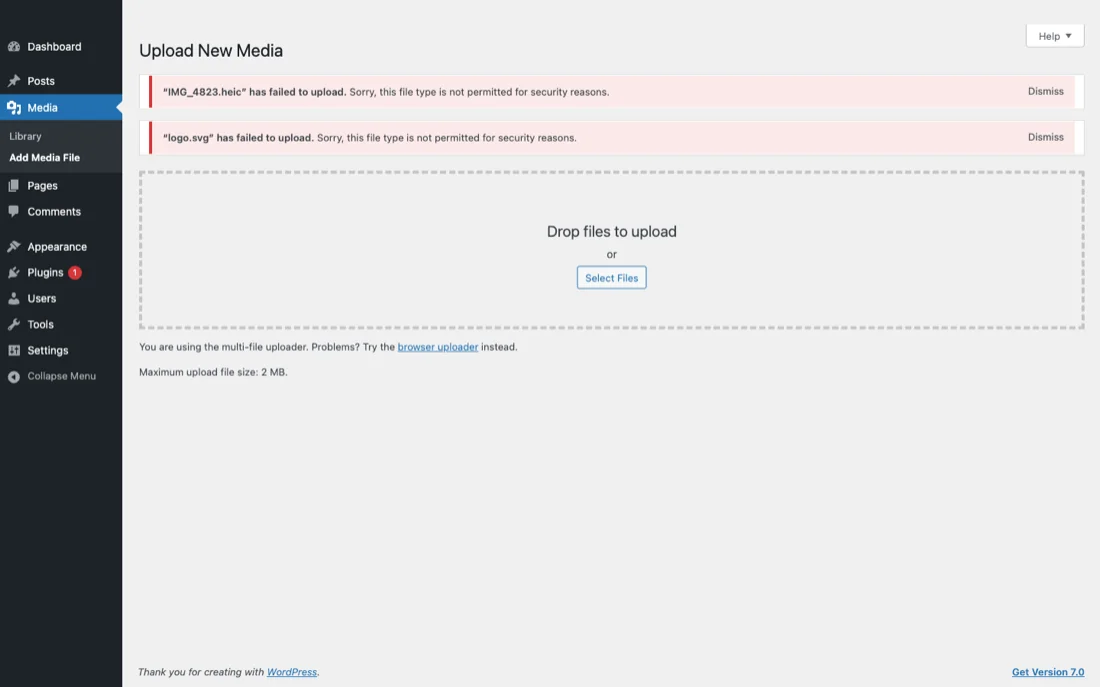
Why WordPress Blocks HEIC by Default
HEIC arrived as the default iPhone photo format with iOS 11 in 2017. WordPress core didn't add HEIC to its allowed MIME types list until version 6.7 in November 2024. That seven-year gap is why "Sorry, this file type is not permitted for security reasons" became one of the most-Googled WordPress error messages of the late 2010s and early 2020s.
Internally, every WordPress upload passes through wp_check_filetype_and_ext(). That function compares both the file extension and the detected MIME type against the list returned by get_allowed_mime_types(). If either fails the check, the upload is rejected before it ever lands in wp-content/uploads. The list itself is generated from the array in wp-includes/functions.php, and HEIC was simply not in there until WordPress 6.7.
The "security" framing is real but narrow. WordPress maintains the allowlist to prevent uploads of PHP scripts, executables, or other content that could be served back to visitors as code. HEIC files don't pose that risk — they're still images decoded by libheif — but the allowlist is binary. Either a MIME type is on the list or it's not. There's no intermediate "probably safe" state.
For a wider look at the WordPress upload pipeline and where iPhone HEIC fits in, see iPhone HEIC Photos and WordPress: What Actually Works in 2026.
How to Check What MIME Types Are Currently Allowed
Before adding HEIC, check what your install already accepts. Three ways to inspect the list, fastest first.
Method 1: Site Health screen
Go to Tools, Site Health, Info, Media Handling in your WordPress admin. You'll see a line labeled "Imagick supported file formats" listing every MIME type the underlying ImageMagick build can decode. If HEIC or HEIF appears in that list, your server can process HEIC files — you just need to add the MIME type to WordPress's allowlist.
Method 2: WP-CLI
If you have shell access, the fastest check is:
wp eval 'print_r(get_allowed_mime_types());'This dumps the complete array of currently allowed extensions and their MIME types. Look for keys ending in heic or heif. If they're missing, you need to add them via filter.
Method 3: A throwaway PHP snippet
Add this to your functions.php temporarily and load any admin page:
add_action('admin_notices', function() {
  $types = get_allowed_mime_types();
  echo '<pre>' . print_r($types, true) . '</pre>';
});
You'll see the array dumped at the top of every admin page. Remove the snippet once you've confirmed what's in the list.
Method 1: Add HEIC via functions.php (Recommended)
The cleanest fix is a small filter on upload_mimes. Add this to your child theme's functions.php or, better, a tiny custom plugin so the change survives theme updates:
<?php
add_filter('upload_mimes', function($mimes) {
  $mimes['heic'] = 'image/heic';
  $mimes['heif'] = 'image/heif';
  return $mimes;
});

add_filter('wp_check_filetype_and_ext', function($data, $file, $filename, $mimes) {
  $filetype = wp_check_filetype($filename, $mimes);
  if (in_array($filetype['ext'], ['heic', 'heif'], true)) {
    $data['ext']  = $filetype['ext'];
    $data['type'] = $filetype['type'];
  }
  return $data;
}, 10, 4);
The first filter adds heic and heif to the allowlist. The second one handles a subtle bug that bites people on shared hosts: the PHP finfo extension sometimes reports HEIC files as application/octet-stream instead of image/heic, which makes wp_check_filetype_and_ext() reject the upload even though the extension is on the allowlist. The second filter forces type recognition when the filename ends in .heic or .heif.
Save the file, then try uploading a HEIC photo through the Media Library. If your server has ImageMagick with libheif compiled in, thumbnails will generate normally. If they appear as gray placeholders, your server can't decode the format — see the troubleshooting section below.
Why a child theme or custom plugin?
If you add the snippet directly to your parent theme's functions.php, the next theme update wipes it out and HEIC uploads start failing silently. A two-line custom plugin solves this:
<?php
/**
 * Plugin Name: HEIC Upload Support
 * Version: 1.0
 */
add_filter('upload_mimes', function($mimes) {
  $mimes['heic'] = 'image/heic';
  $mimes['heif'] = 'image/heif';
  return $mimes;
});
Save as wp-content/plugins/heic-upload-support/heic-upload-support.php, activate it from the Plugins screen, and you're done. The change is decoupled from your theme and from WordPress core updates.
Method 2: Use a Plugin
If you don't want to edit PHP, several plugins handle the upload_mimes filter for you. Two production-tested options:
WP Add Mime Types
This is the simplest plugin in the category. After activation, go to Settings, Mime Type Settings and add a row with extension heic and MIME type image/heic. Add a second row for heif and image/heif. Save. That's the entire workflow.
The plugin has been actively maintained since 2014 and has over 80,000 active installs. The codebase is small enough that it has not had a security advisory since 2018.
File Upload Types by WPForms
If you're already using WPForms for contact forms, this same vendor ships a free File Upload Types plugin that adds a checkbox-driven interface to the allowlist. You search for "HEIC" in the list, check the box, save. It also handles WebP, AVIF, SVG, and a handful of less common formats with the same pattern.
Both plugins do exactly what the filter does, just through a UI. There's no performance difference. Choose the plugin path if you're uncomfortable editing PHP files; choose the filter path if you want to keep your active plugin count low.
Method 3: Server-Level Whitelist (Advanced, Use with Caution)
WordPress has an escape hatch in wp-config.php that bypasses the allowlist entirely:
define('ALLOW_UNFILTERED_UPLOADS', true);With this constant set, administrators can upload any file type, including HEIC. The check is gone. The MIME type validation is gone.
Don't do this in production. The constant disables every upload safety check WordPress has. An administrator account compromise becomes a server compromise because the attacker can upload PHP scripts directly to wp-content/uploads and execute them. Even setups that look safe today often turn out to have a forgotten subscriber-with-admin-role somewhere.
The only legitimate use case for ALLOW_UNFILTERED_UPLOADS is a local development environment where you're debugging upload behavior. Even then, comment it out before pushing to staging.
After Enabling HEIC: The Browser Display Problem
Adding HEIC to the allowlist solves the upload error. It doesn't solve the display problem. Safari renders HEIC images natively, but Chrome, Firefox, Edge, and the Android stock browser don't. If you upload a raw HEIC file and embed it in a post, most of your visitors will see a broken image icon.
There are three real fixes:
Server-side conversion via plugin
Image optimization plugins like ShortPixel, Imagify, and EWWW Image Optimizer can intercept HEIC uploads and generate JPEG or WebP variants on the fly. Visitors get the format their browser supports; HEIC stays on the server as the original. ShortPixel handles this transparently with its "Adaptive Delivery" or WebP/AVIF settings enabled.
Server-side conversion via custom code
If you don't want a paid plugin, add this filter to convert HEIC to JPEG automatically on upload (requires ImageMagick with libheif):
add_filter('wp_handle_upload_prefilter', function($file) {
  if (!in_array(strtolower(pathinfo($file['name'], PATHINFO_EXTENSION)), ['heic', 'heif'], true)) {
    return $file;
  }
  $imagick = new Imagick($file['tmp_name']);
  $imagick->setImageFormat('jpeg');
  $imagick->setImageCompressionQuality(85);
  $new_path = preg_replace('/\.(heic|heif)$/i', '.jpg', $file['tmp_name']);
  $imagick->writeImage($new_path);
  $imagick->destroy();
  $file['tmp_name'] = $new_path;
  $file['name'] = preg_replace('/\.(heic|heif)$/i', '.jpg', $file['name']);
  $file['type'] = 'image/jpeg';
  return $file;
});
This runs every HEIC upload through ImageMagick, replaces the original with a JPEG, and stores the JPEG in the Media Library. Visitors get a JPEG regardless of browser.
Client-side conversion before upload
The most reliable approach is to convert on the device before the file ever reaches your server. SnapPress does exactly this for iPhone uploads: when you select HEIC photos in the share sheet or the app, it decodes them on-device using the iOS image pipeline and uploads JPEG to your WordPress site. Your server doesn't need libheif, and your upload_mimes filter doesn't need HEIC because the file that arrives is already a standard JPEG. This is the approach I covered in detail in the iPhone HEIC and WordPress guide.
Troubleshooting Common Errors
"Sorry, this file type is not permitted for security reasons" still appears
Your upload_mimes filter isn't being loaded. Check three things: (1) the file containing the filter is actually being included on every request — if you put it in a child theme but the parent theme is active, it won't run; (2) the filter doesn't return early or short-circuit; (3) some security plugins (Wordfence, Sucuri) add their own upload validation on top of WordPress core. Whitelist HEIC in the plugin settings as well.
The file uploads but thumbnails are gray placeholders
Your server accepted the file because the allowlist is correct, but ImageMagick can't decode HEIC because it was compiled without libheif. Either ask your host to upgrade the ImageMagick build (managed WordPress hosts like Kinsta and WP Engine already ship libheif by default), or use the server-side conversion filter shown above to convert to JPEG on upload. The deeper diagnosis is in Cannot Upload Images to WordPress? 8 Causes and How to Fix Each One.
"This file type is not allowed" but the extension is .heic
PHP's finfo module reported the MIME type as application/octet-stream instead of image/heic. This is the bug the second filter in Method 1 fixes. Add the wp_check_filetype_and_ext filter from the recommended snippet and the error goes away.
The upload progress bar reaches 100% then errors
The file made it to the server but WordPress could not write to wp-content/uploads, or the PHP memory_limit was exhausted during thumbnail generation. HEIC decoding is roughly 2 to 3x more memory-intensive than JPEG, so a server that handles 5MB JPEGs comfortably may struggle with 5MB HEIC files. Raise WP_MEMORY_LIMIT to 256M and try again.
Upload from iPhone Without Any of This
Everything above assumes you want HEIC files to land directly on your WordPress server. The other path — and the one I have shipped to thousands of WordPress sites without a single configuration change on the server — is to convert on the iPhone before upload.
SnapPress reads HEIC from your Photos library, decodes it using the iOS image pipeline (which Apple maintains and updates with every iOS release), and uploads a JPEG to your WordPress Media Library via the REST API. Your functions.php stays untouched. Your upload_mimes filter stays untouched. The file that lands on your server is a standard JPEG that every WordPress install since 2003 has supported.
This is the path I recommend for anyone who manages multiple WordPress sites or who isn't comfortable editing PHP. Configure once on the iPhone, push photos to any WordPress site you have application passwords for, and never see "Sorry, this file type is not permitted for security reasons" again.
If you publish from iPhone often, see the workflow comparison in Bulk Upload Images to WordPress from Your Phone: The Complete Guide.
Recap and Recommendation
TL;DR: image/heic isn't on the allowlist, so the upload dies at the gate. Three ways to fix it:
- functions.php filter — the cleanest production fix. Five lines, no plugin overhead, works on every WordPress install.
- WP Add Mime Types plugin — the no-code path. Same effect as the filter, costs you one plugin slot.
- ALLOW_UNFILTERED_UPLOADS — never use in production. Disables every upload safety check WordPress has.
Whichever method you choose, remember that allowing HEIC upload is only half the problem. Most visitor browsers can't render HEIC, so you also need server-side conversion (ShortPixel, custom Imagick filter) or client-side conversion (SnapPress, Shortcuts) to make sure the file your readers actually see is a JPEG.
For iPhone publishing workflows specifically, on-device conversion is the most resilient approach because it doesn't depend on your hosting provider's ImageMagick build. Start with SnapPress free, connect via the SnapPress Connect WordPress plugin, and HEIC just becomes "a photo I uploaded."
Frequently Asked Questions
Why does WordPress block HEIC by default?
WordPress validates every upload against a hardcoded allowlist returned by get_allowed_mime_types(). Until version 6.7 in late 2024, image/heic and image/heif were not in that list, so the upload was rejected before the file even reached the Media Library. The "security reasons" message is misleading — it's really a strict allowlist designed to prevent attackers from uploading executables disguised as images. Even with WordPress 6.7+, many shared hosts still need a manual upload_mimes filter because their custom builds strip newer MIME types out.
Is it safe to allow HEIC uploads on WordPress?
Yes. HEIC is a still-image container based on the HEIF format, and the actual decoder is libheif which is well-audited and used in macOS, iOS, Windows 10+, and most Linux distributions. Allowing image/heic in the upload_mimes filter doesn't weaken WordPress security because the file still has to pass wp_check_filetype_and_ext() validation. The bigger risk is the opposite: people enable ALLOW_UNFILTERED_UPLOADS in wp-config.php to fix one HEIC error, then forget about it and leave their entire upload pipeline wide open.
Will HEIC photos display in all browsers after I enable upload?
No, and that's the part most tutorials skip. Safari renders HEIC natively, but Chrome, Firefox, Edge, and the Android stock browser don't. If you upload a raw HEIC file and embed it in a post with an img tag, roughly 70 percent of your visitors will see a broken image. You either need a server-side conversion plugin like ShortPixel that delivers JPEG or WebP to non-Safari users, or you need to convert HEIC to JPEG at the moment of upload so the file stored in your Media Library is web-compatible from the start.
How do I bulk convert HEIC to JPEG before upload?
On macOS, drag the HEIC files into Preview, open them all in one window, then File, Export, choose JPEG quality 85. On Windows 11, open the folder in File Explorer, select all HEIC files, right-click, Open with Photos, then save each as JPEG (slower). On iPhone, there's no built-in batch converter — the Shortcuts app can build one with a single "Convert Image" action, or you can use an iPhone-native upload tool that handles the conversion automatically during send so you never deal with the file on disk.
Does enabling HEIC affect WordPress performance?
Only at upload time, not at delivery. When you allow image/heic and a HEIC file lands on your server, WordPress generates the thumbnail and intermediate sizes via ImageMagick or GD. HEIC decoding through libheif is roughly 2 to 3 times slower than JPEG decoding because the codec does more work. For a single upload this is imperceptible. For a bulk upload of 100 photos on a budget shared host, you may hit the PHP max_execution_time limit. Pre-converting to JPEG or using an upload tool that converts on-device avoids this entirely.
What is the difference between HEIC and HEIF?
HEIF (High Efficiency Image Format) is the underlying image format using HEVC compression. HEIC (High Efficiency Image Container) is the file extension Apple uses to wrap a single HEIF image. The MIME types are image/heic and image/heif respectively. When you add HEIC to the upload_mimes filter, always add HEIF as well — iPhones occasionally produce .heif files for image sequences and bursts, and treating them as separate types breaks uploads in subtle ways. WordPress 6.7 internally treats both extensions identically, but the allowlist still checks each MIME type by name.
Send iPhone photos straight to WordPress
SnapPress uploads up to 20 photos at once from your iPhone straight to the WordPress media library, converting HEIC to JPEG on the device. No Jetpack and no WordPress.com account — it authenticates with a standard WordPress Application Password. Free for 10 photos a month.
Two steps to start: install the free "SnapPress Connect" plugin on WordPress, then install the iPhone app and pair them with a QR code.
About the author

Founder & CEO, 37Design
Founder & CEO of 37Design, a web and AI consultancy based in Tokyo, Japan. Built SnapPress to eliminate the pain of uploading dozens of iPhone photos to WordPress — one by one.
37design.co.jp