 SnapPress

SnapPress Connect Launches on the Official WordPress.org Plugin Directory
SnapPress Connect — the companion WordPress plugin for the SnapPress iOS app — now has an official listing in the WordPress.org Plugin Directory, at wordpress.org/plugins/snappress-connect. Site owners can install it in one click from the admin dashboard and pick up automatic update notifications, which puts an end to ZIP downloads and manual uploads.
For the project as a whole, that clears the last bit of friction left in the flow from your iPhone to your WordPress site.
What This Launch Changes
Already on the ZIP version from our website? That still works — but the official listing does a few things the ZIP couldn't:
- One-click install from your WordPress dashboard. Go to Plugins > Add New, search for "SnapPress Connect," and click Install. No ZIP files, no FTP, no manual uploads.
- Automatic update notifications. When we release a new version, WordPress will notify you and let you update with one click, just like any other plugin.
- Reviewed code. Every plugin on the official directory goes through a manual review for security and WordPress coding standards before being accepted.
The plugin itself is unchanged; only the path to installing it and staying current got smoother.
Quick Install Steps
New to SnapPress? Here's the short version:
- Log in to your WordPress admin dashboard.
- Go to Plugins > Add New.
- Search for "SnapPress Connect".
- Click Install Now, then Activate.
- Go to Settings > SnapPress Connect to generate your QR code.
- Scan the QR code with the SnapPress app on your iPhone.
That's the whole setup — your site is connected, and you can start uploading from your phone right away. For a walkthrough with screenshots and troubleshooting, see the step-by-step SnapPress Connect setup guide.
What SnapPress Connect Does
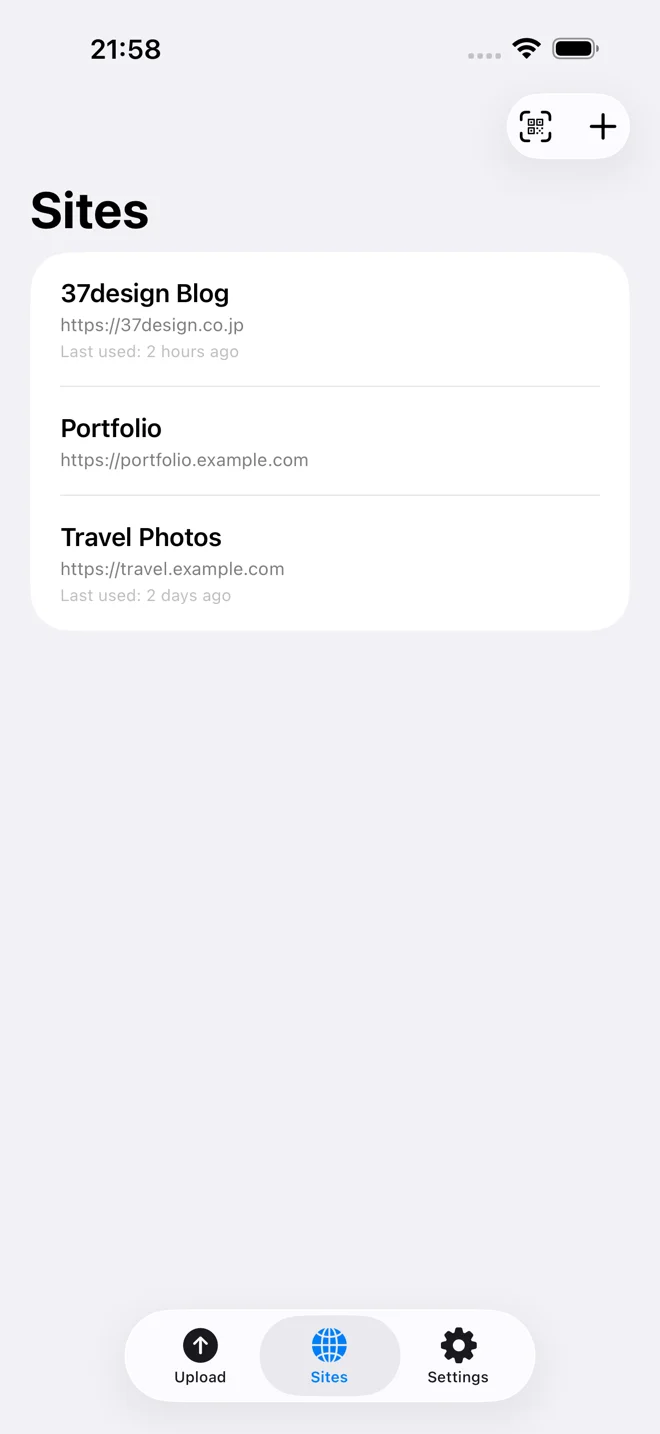
SnapPress Connect is a lightweight WordPress plugin that generates a QR code containing your site's connection details. When you scan this code with the SnapPress iOS app, your WordPress site is registered in the app instantly — no typing URLs, no copying credentials.
The plugin uses WordPress Application Passwords (built into WordPress since version 5.6) for secure authentication. Your main login credentials aren't stored in the app, and you can revoke access anytime from your WordPress dashboard.
Why the Official Directory Listing Matters
An official WordPress.org listing was always going to happen. Two reasons it matters:
- Trust. A listing on WordPress.org tells users the code has been reviewed by the WordPress plugin team. Updates flow through the same trusted system WordPress uses for every other plugin.
- Discoverability. WordPress powers over 40% of the web, and the plugin directory is where most site owners go first when looking for tools. Being there means more people can find SnapPress Connect when they need a better way to upload photos from their phone.
Already Using the ZIP Version? Switch Over
If you're on the ZIP version, uninstall it and reinstall from the WordPress.org Plugin Directory — that's what switches you over to automatic updates. Your QR code and Application Password setup survive the reinstall.
Get Started
Install SnapPress Connect from WordPress.org
Stuck on setup? The full SnapPress Connect setup tutorial walks through it step by step.
No SnapPress app yet? Grab it on the App Store and you'll be uploading photos to WordPress from your iPhone in seconds.
Send iPhone photos straight to WordPress
SnapPress uploads up to 20 photos at once from your iPhone straight to the WordPress media library, converting HEIC to JPEG on the device. No Jetpack and no WordPress.com account — it authenticates with a standard WordPress Application Password. Free for 10 photos a month.
Two steps to start: install the free "SnapPress Connect" plugin on WordPress, then install the iPhone app and pair them with a QR code.
About the author

Founder & CEO, 37Design
Founder & CEO of 37Design, a web and AI consultancy based in Tokyo, Japan. Built SnapPress to eliminate the pain of uploading dozens of iPhone photos to WordPress — one by one.
37design.co.jp