 SnapPress

SnapPress Connect 1.5: Get Your iPhone Connected in One Click
As of September 14, 2026, SnapPress Connect 1.5 is live on WordPress.org. The way uploads work has not changed. What changed is the stretch that used to cause the most questions: the path from "I activated the plugin" to "photos from my iPhone are landing in WordPress," with no guessing at each step. This post walks through what the update means for you.
The setup screen is one click away
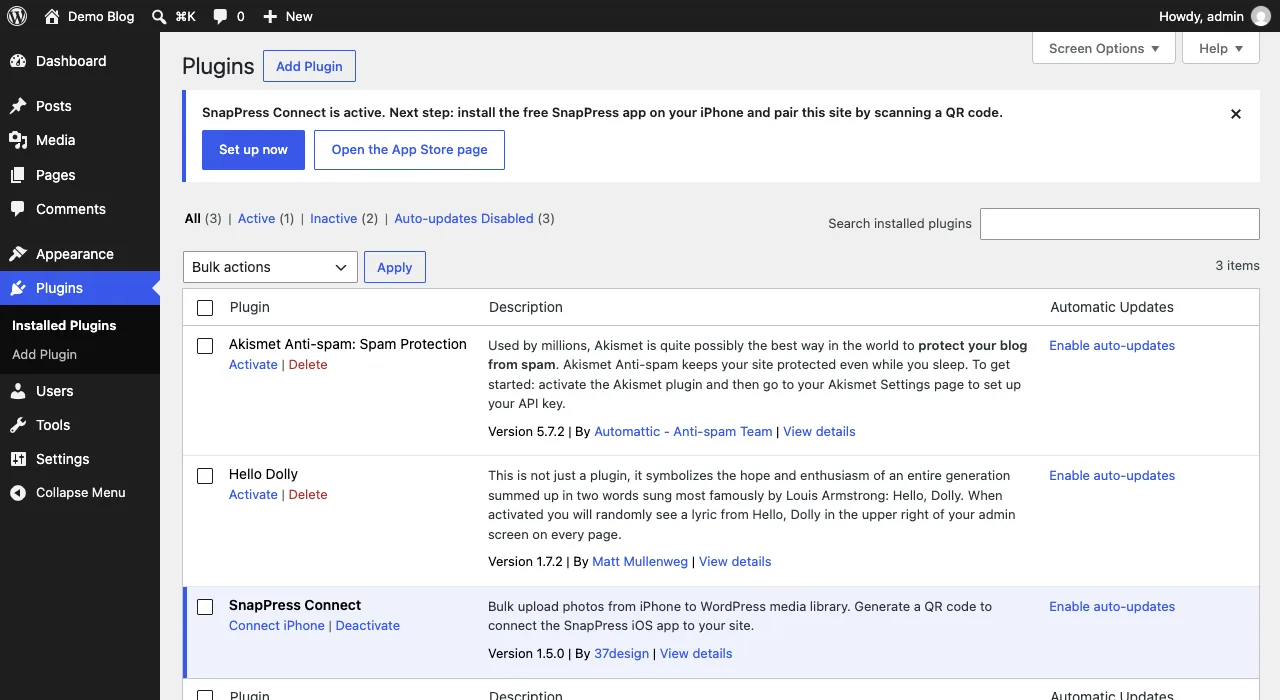
The moment the plugin is active, the Plugins list shows a Connect iPhone link right next to "Deactivate." One click lands you on the setup screen. No need to memorize that it sits under Tools > SnapPress Connect, and no guide is required to find it.
A one-time notice tells you what to do next
Right after activation, the Plugins screen shows a short notice: install the free SnapPress app on your iPhone, then pair this site with a QR code. There are two buttons, Set up now and Open the App Store page. Read it, pick one, and you are done. Close it or open the setup screen, and it never shows up again — and it does not chase you around other wp-admin pages.
From your desk, get the app onto your phone
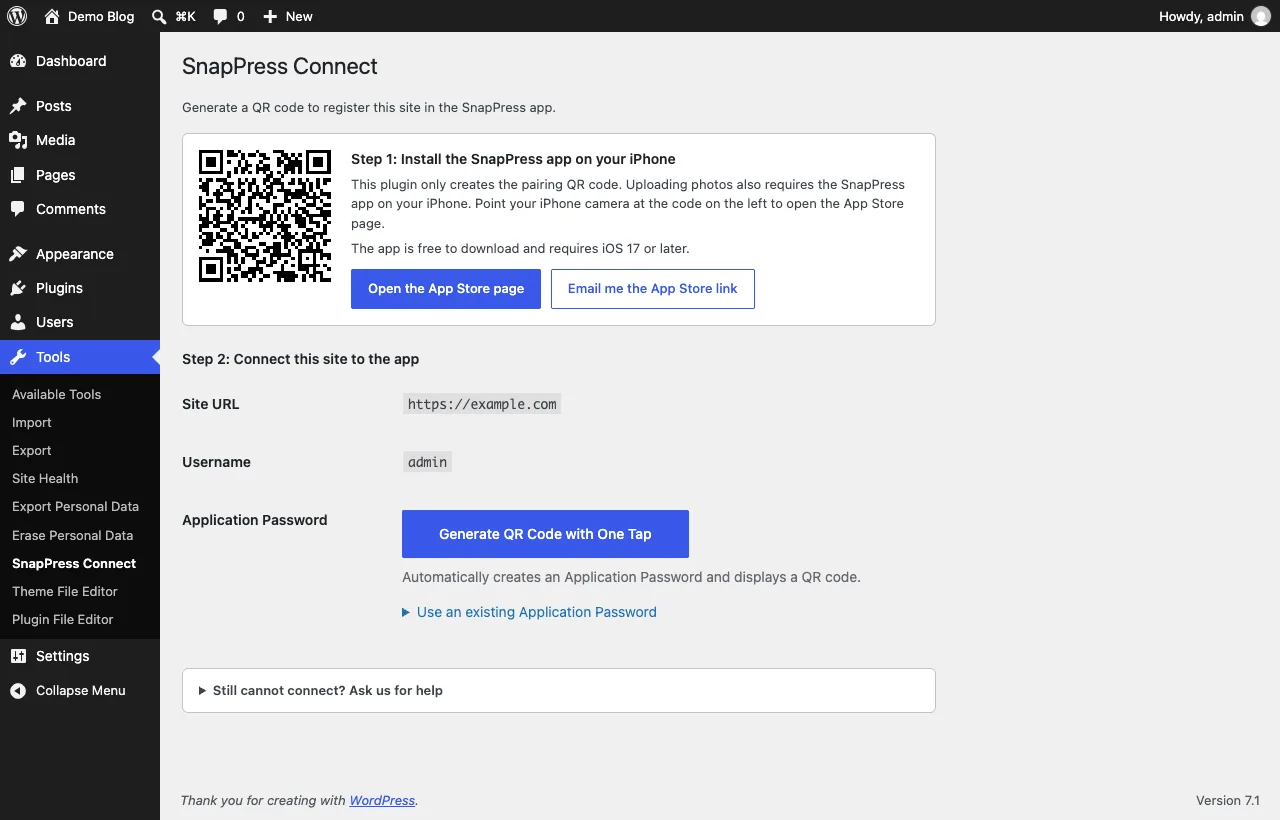
Plugin setup is usually done at a computer, but the app lives on your iPhone. The setup screen has long shown an App Store QR code you can scan with the iPhone camera. New this time is the Email me the App Store link button. Press it, open the mail on your phone, tap the link, install. The email is sent through your site's normal mail function and reaches only your own WordPress address — nothing about you goes to a third party.
You know the cost and requirements before you start
The setup screen now states it plainly: the app is free to download, and it needs iOS 17 or later. No more "oh, actually" moments after you have already generated a QR code. The plugin page on WordPress.org now carries a banner and four screenshots of the setup screen and the iPhone app, so you can see what the whole thing looks like before installing anything.
Already connected? Nothing changes
If you are already connected, everything keeps working as it does. No new QR code, no new Application Password. Update at your convenience from Plugins in wp-admin, or leave it to auto-updates.
What you can do once connected
- Up to 20 photos per tap, straight from your iPhone to the WordPress media library — as many times as you like.
- HEIC photos are converted to JPEG on the iPhone before they are sent, so every shot lands in WordPress without issue.
- Uploaded photos carry no EXIF data such as GPS, so where a photo was taken is never exposed.
- No Jetpack, no WordPress.com account. The app signs in with a standard WordPress Application Password, which you can revoke at any time from your profile.
First-time setup
- In Plugins > Add New, search "SnapPress" and install and activate SnapPress Connect.
- Click Connect iPhone.
- Install the free SnapPress app on your iPhone — scan the App Store QR code, or press "Email me the App Store link".
- Press Generate QR Code with One Tap and scan it with the app.
The full walkthrough with screenshots for every step is in the How to set up the SnapPress Connect plugin guide.
Frequently Asked Questions
- Do I need to do anything special to get 1.5?
- No. Open Plugins in wp-admin and click Update on SnapPress Connect, or leave it to auto-updates. Your existing connection keeps working, and there is no need to make a new QR code.
- Does the plugin send anything behind the scenes?
- No. The notice, the link, and the email button only act when you click them. The email reaches only your own WordPress address, going out through your site's normal mail function. No third-party service is involved.
- Will the setup notice keep showing up?
- No. It shows once, and only on the Plugins screen. Close it or open the setup screen, and it is gone for good. It does not appear on other wp-admin pages.
- How much does the SnapPress app cost?
- The app itself is free to download. The free tier covers 10 photos per month on one site. Standard ($0.99/month or $4.99 one-time) removes the monthly cap, and Pro ($1.99/month or $9.99 one-time) adds unlimited sites and video upload. Prices vary by region.
Send iPhone photos straight to WordPress
SnapPress uploads up to 20 photos at once from your iPhone straight to the WordPress media library, converting HEIC to JPEG on the device. No Jetpack and no WordPress.com account — it authenticates with a standard WordPress Application Password. Free for 10 photos a month.
Two steps to start: install the free "SnapPress Connect" plugin on WordPress, then install the iPhone app and pair them with a QR code.
About the author

Founder & CEO, 37Design
Founder & CEO of 37Design, a web and AI consultancy based in Tokyo, Japan. Built SnapPress to eliminate the pain of uploading dozens of iPhone photos to WordPress — one by one.
37design.co.jp